This section explains the features of Markers. A marker is an entity that flags a physical or logical item of interest within a trace file. A marker contains one or more attachments. You can add a marker to a trace file or remove a marker from a trace file.
Markers are represented graphically in a different way in the application. The application is granular enabling you to add markers to individual cells, in addition to adding markers to the packets.
Markers Overview
This functionality provides the user an easy way to navigate through attachments which is a discrete piece of information or data added to a marker, for example, a text description or file, an attachment of a trace file by a predefined order, video or audio files, URL links or any other files.
Functionality of Markers
The markers functionality allows you to add markers to:
-
Whole packets or frames
-
Specific cells
-
Specific values within a cell: Bytes, words, etc.
You can add attachments to markers (below).
-
Right-click on any cell of a packet and select Set Marker from the menu as shown below or click Ctrl+K.
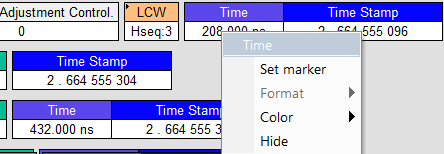
Time Dialog The Create Marker window appears.
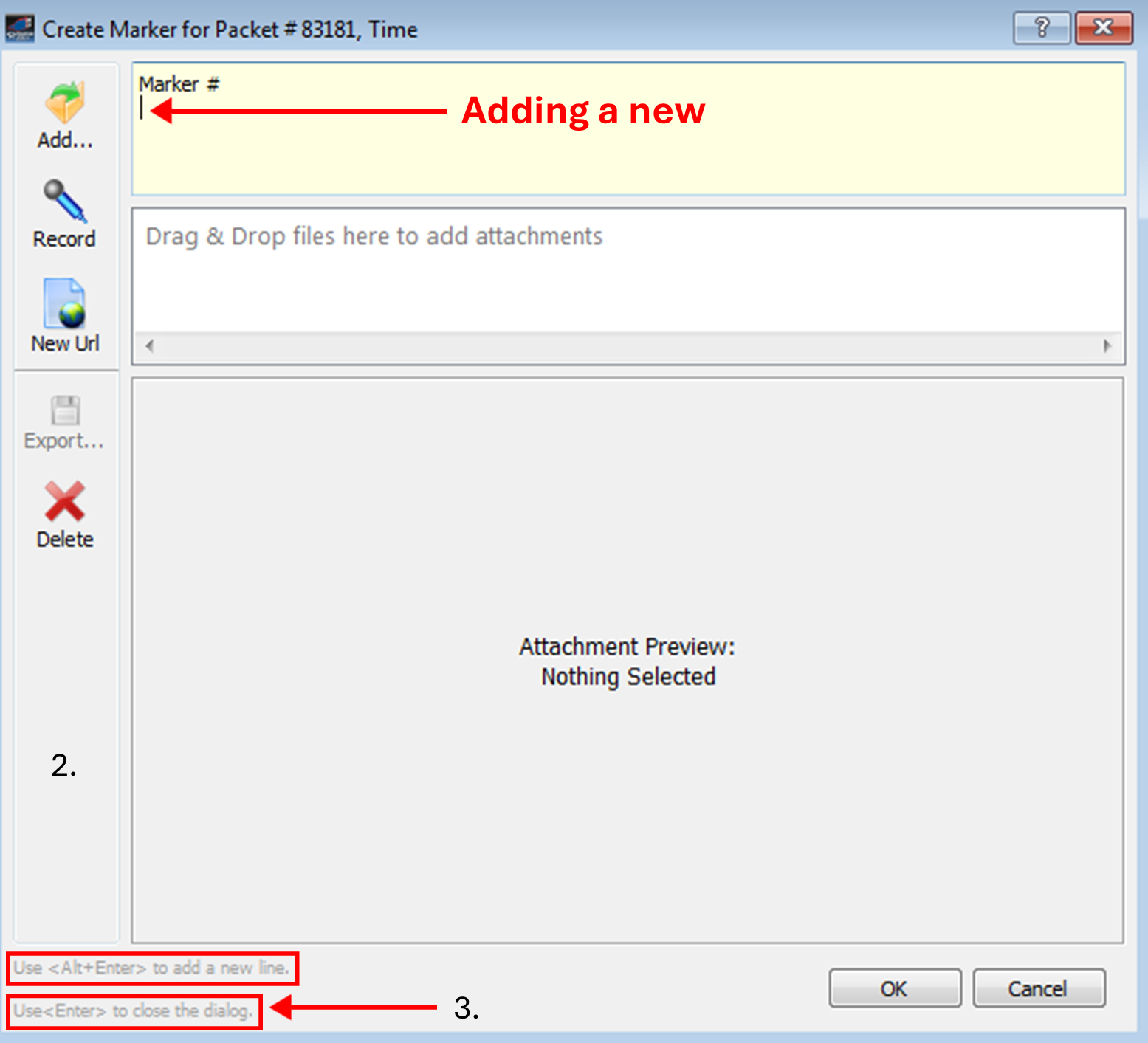
Create Marker for Packet Dialog -
Click ALT+Enter to add a new line.
-
Click Enter to close the Marker dialog.
As previously described, you can:


Attaching Markers
You can attach a discrete piece of information/data to a marker, for example, a text description or file, an attachment of a trace file by a predefined order, video or audio files, URL links or any other files. You can also remove an attachment from a Marker.
Adding an Attachment
Perform the following steps to add an attachment to a marker:
-
Right-click on any cell in the trace and select Set Marker. The Create Marker window appears.
-
Click the Add icon to view the Add File to the Marker dialog window.
-
Go to the file and select it to add it to the marker as an attachment.
-
Click Open.
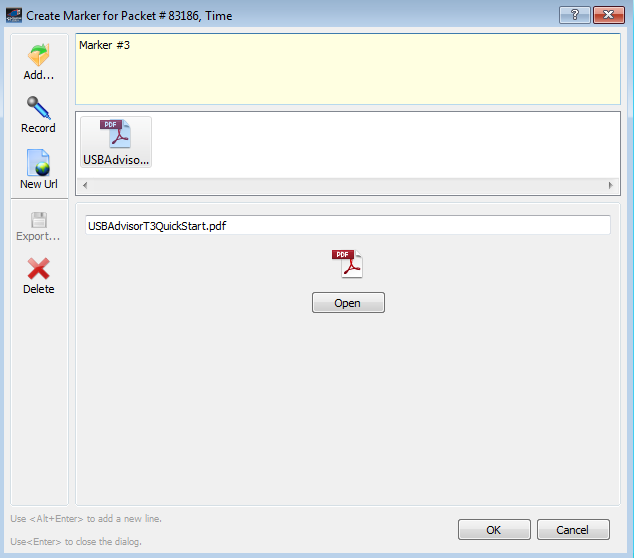
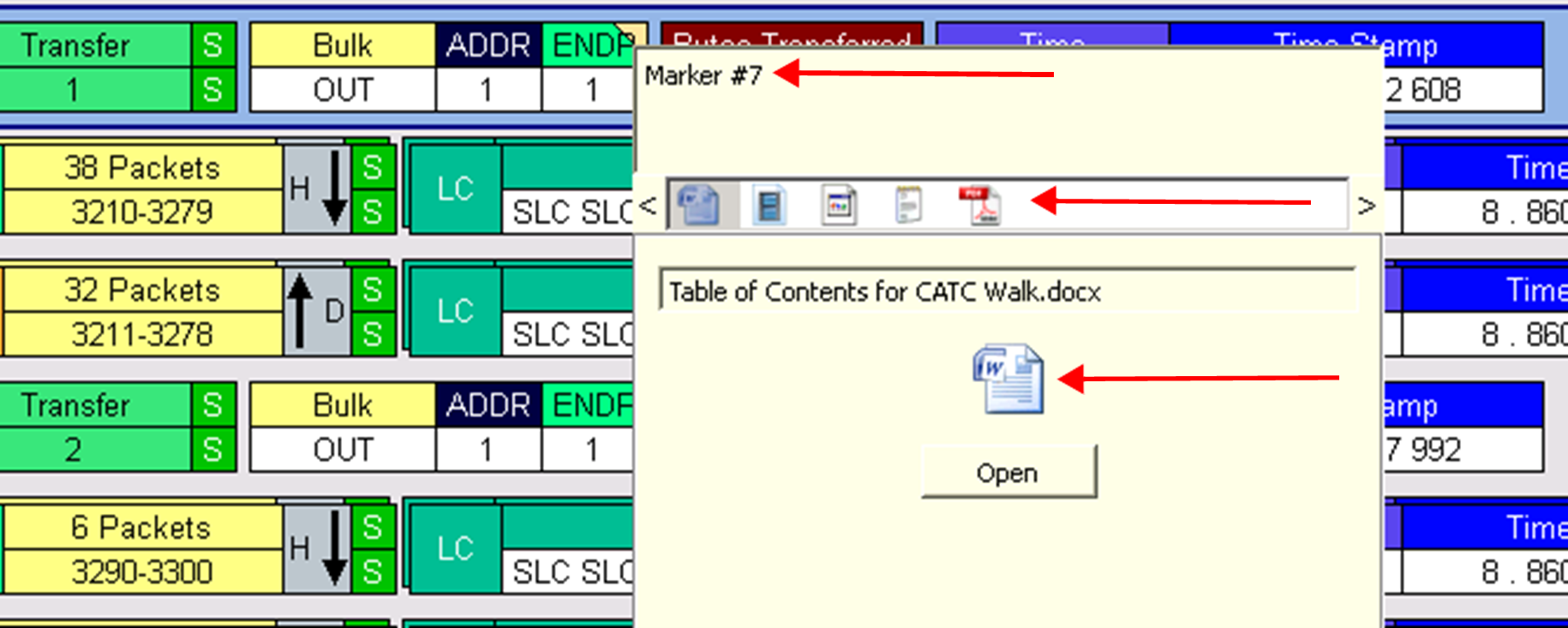
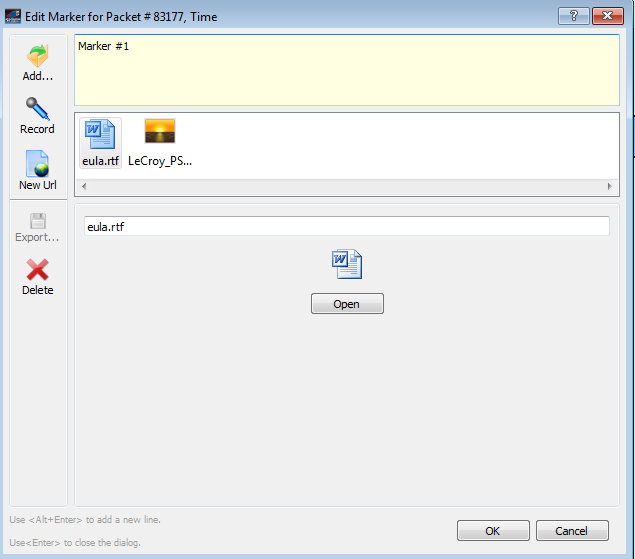
The file will appear in the Create Marker for Transfer dialog. The Marker # appears in the top panel, the icons are displayed in the second panel and you can click on the icon on the third panel to view the file you are about to attach. -
Click OK to add the attachments.
Recording an Audio File
The audio quality supports voice attachment and is not designed for high-quality audio. Playback of audio content is not limited and depends on the formats supported by the installed playback engine. This functionality is disabled if a microphone is not installed.
Click the Record icon and speak into the microphone to record an audio file.
Video Files Supported
You can attach video clips to the trace file (“add to the marker”). The playback of the Video clips is limited to the formats that are supported by the video codecs installed in the system.
Attachment Types and Visualization
The markers are represented graphically by a yellow triangle at the top right of the marked item and a red vertical bar at the left-most cell of a packet as shown below.

A marker may comprise any number of attachments of any types.
Embedded Attachments to a Marker
Embedded files are attached to the item marked and transported with the trace. You can embed the following types of files to a marker:
-
Audio Files
-
Video Files
-
Image Files
-
YouTube Files
-
Web Pages
-
Text Attachments
-
Other Attachments
Attachments are embedded in the marker and saved in the trace file. Once attachments are placed in a marker, the marker can then be presented to a user in a story structured form. On opening the marker the window resembles the marker editing dialog.
NOTE: The use of Audio and Video markers is limited to the file types supported on a user’s system. CATC Walk has been tested with .mp3 and .wmv files, which are supported by Windows as installed. If additional codecs are installed, they should also work, but it is the user’s responsibility to choose formats that will work for whomever they intend to exchange CATC trace files (no different than email attachments in this regard).
Because of this dependency on installed codecs, there are situations where bugs in the codecs supplied by Microsoft or third-party applications can prevent proper operation of the USB Protocol Suite application. See the USB protocol Suite Read Me file for more information if you have problems with application crashes, etc.
Viewing Attachments of a Marker
If you hover over the marked cell (yellow triangle at the top right of the marked item, refer to Attachment Types and Visualization), a window pops up displaying the contents of the marked cell.
While hovering over the marked cell, it can start playing the start of the audio or video file, but it will stop after a short time due to the analyzer PC system timeout for Tooltips. You must click on it to open the audio or video attachment for further listening or viewing.
To view an attachment you can click on any of the icons in the attachment bar and or you can double-click on the icon itself to open the attachment.
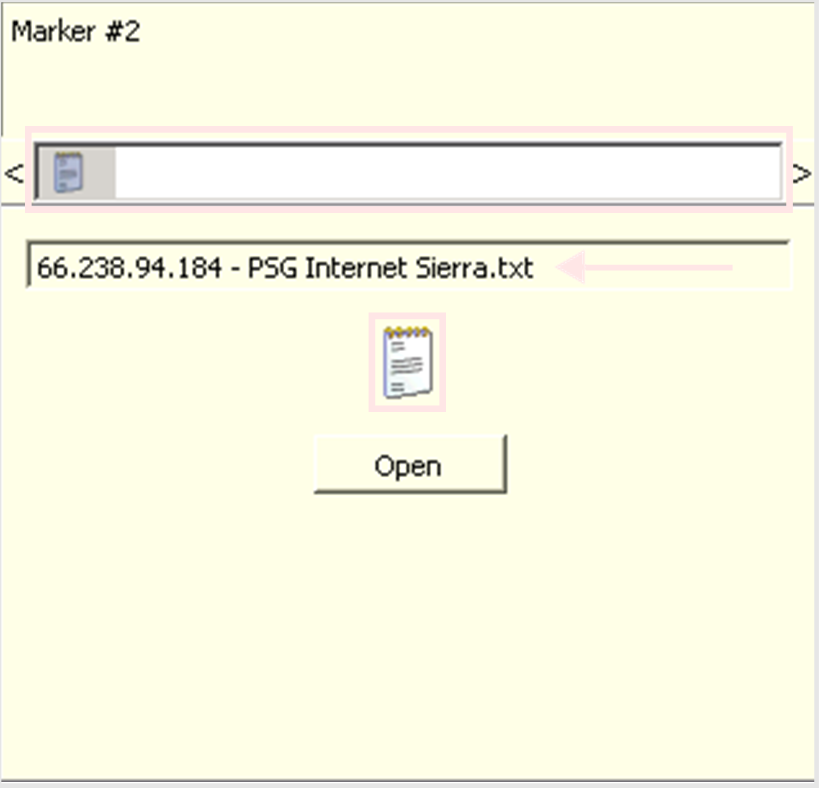
Text
The text attachment is displayed in the icon bar and in the main pop-up window. Text attachments are always shown at the top. The attachment file name is displayed in the field as shown below.
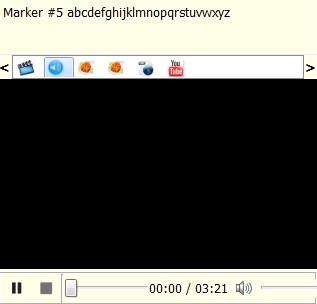
Audio
Audio snippets that are recorded and attached to a certain point of interest in a trace can be played. The basic Play, Start, Stop, and Pause buttons are displayed to listen to the audio file.
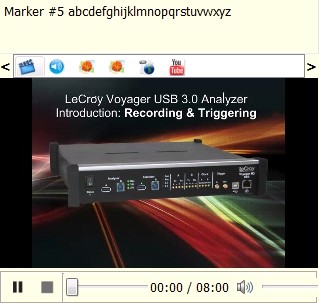
Video
Video clips that are recorded and attached to certain point of interest in a trace can be played. The video is embedded in the tooltip with simple playback controls.
File Attachment
You can attach any kind of file, including images, PDFs, documents, media files, etc.
URL Link
You can specify a URL that links to a web page (e.g., YouTube), a network location, or a local file-system location.
Web Link
Due to the small size, the web page is not embedded in the callout. Use the
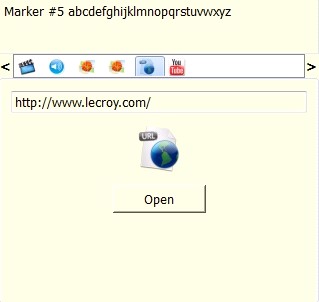
Open button to open the web link in the default web browser.
YouTube Video
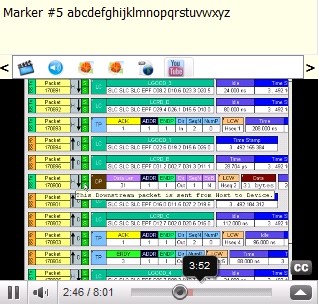
The YouTube video player is embedded for YouTube Video playback.
Images
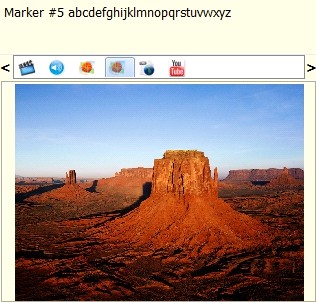
The image is embedded in the trace.
Other Attachments
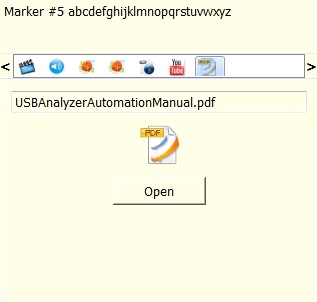
Click Open to open the attachment with the system’s default application for that file type.
Edit a Marker
To edit a marker, right-click on the marked item and select Edit marker from the menu or Ctrl + L. The Edit Marker dialog displays. This Edit Marker window can be used to edit one marker at a time.
You can do the following in the Edit Marker dialog:
-
Edit text attachment.
-
Record audio attachment.
-
Add URL link attachment
-
Add a file attachment. Click File and click the Open button or drag and drop the file.
-
Preview audio/video/image/URL/YouTube attachment or open other files with system default application.
-
Save an attachment to a file.
-
Remove attachment.
All Markers Window
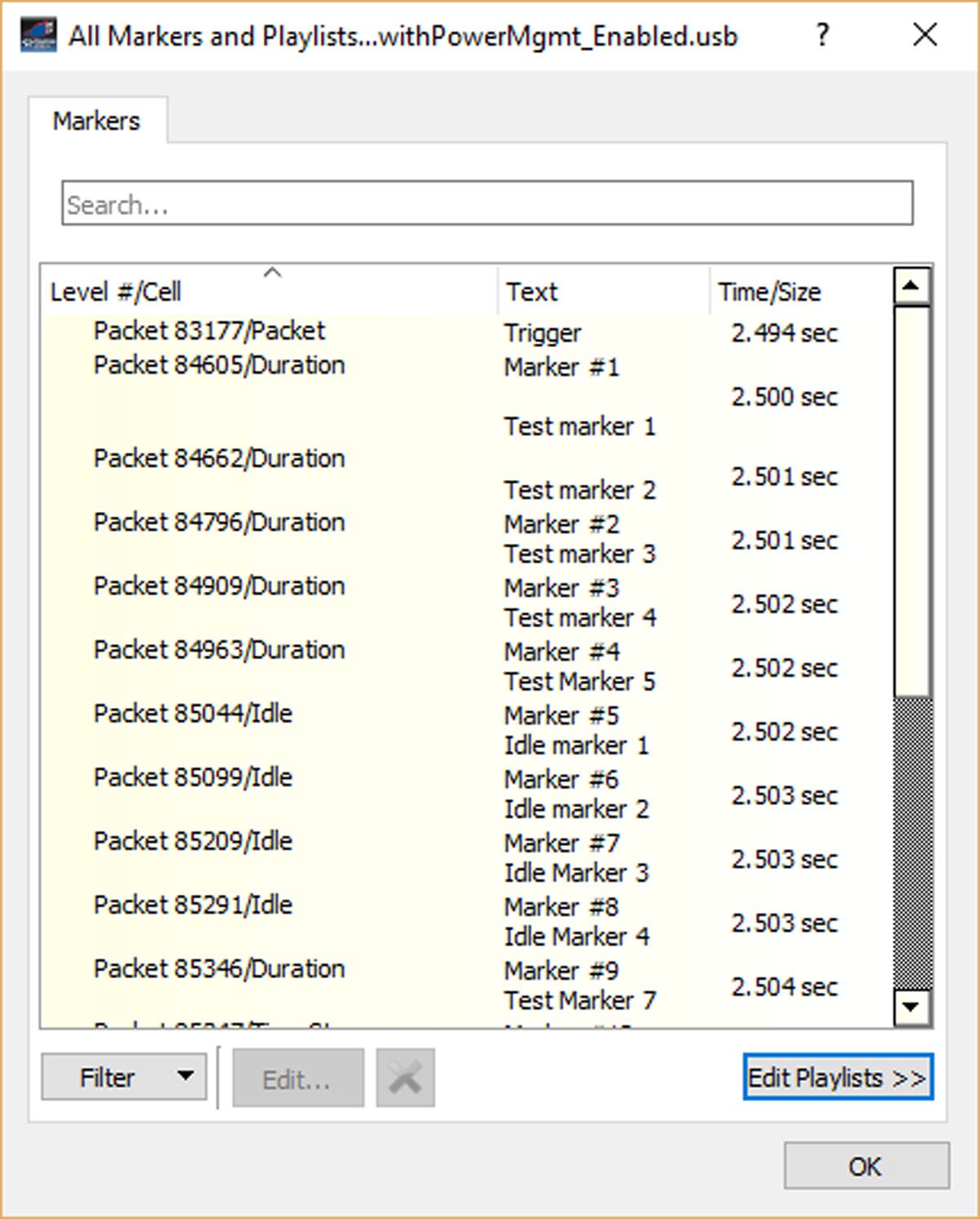
Select Search > Go to Marker > All Markers or press Ctrl + M to display a list of all the markers in the file. The window uses a tree structure to show packets, fields and markers.
-
All Markers are displayed.
-
You can Search For/Filter the type of Markers you are looking for
-
All attachments within the marker are displayed. Hovering over the marker displays a tool-tip displaying the size of all the attachments.
-
You can collapse or expand the item marked to view the attachments
-
The Time and size of audio and video files are displayed
-
You can edit Playlists from this window
-
You can edit, delete a marker or delete all markers from this location
-
You can filter attachments within the marker
-
You can select a range of markers by clicking Shift and selecting a range
-
You can select multiple markers by clicking Ctrl and selecting individual markers
-
Double-click on a marker to go to that marker in the trace and close the dialog
Search Markers
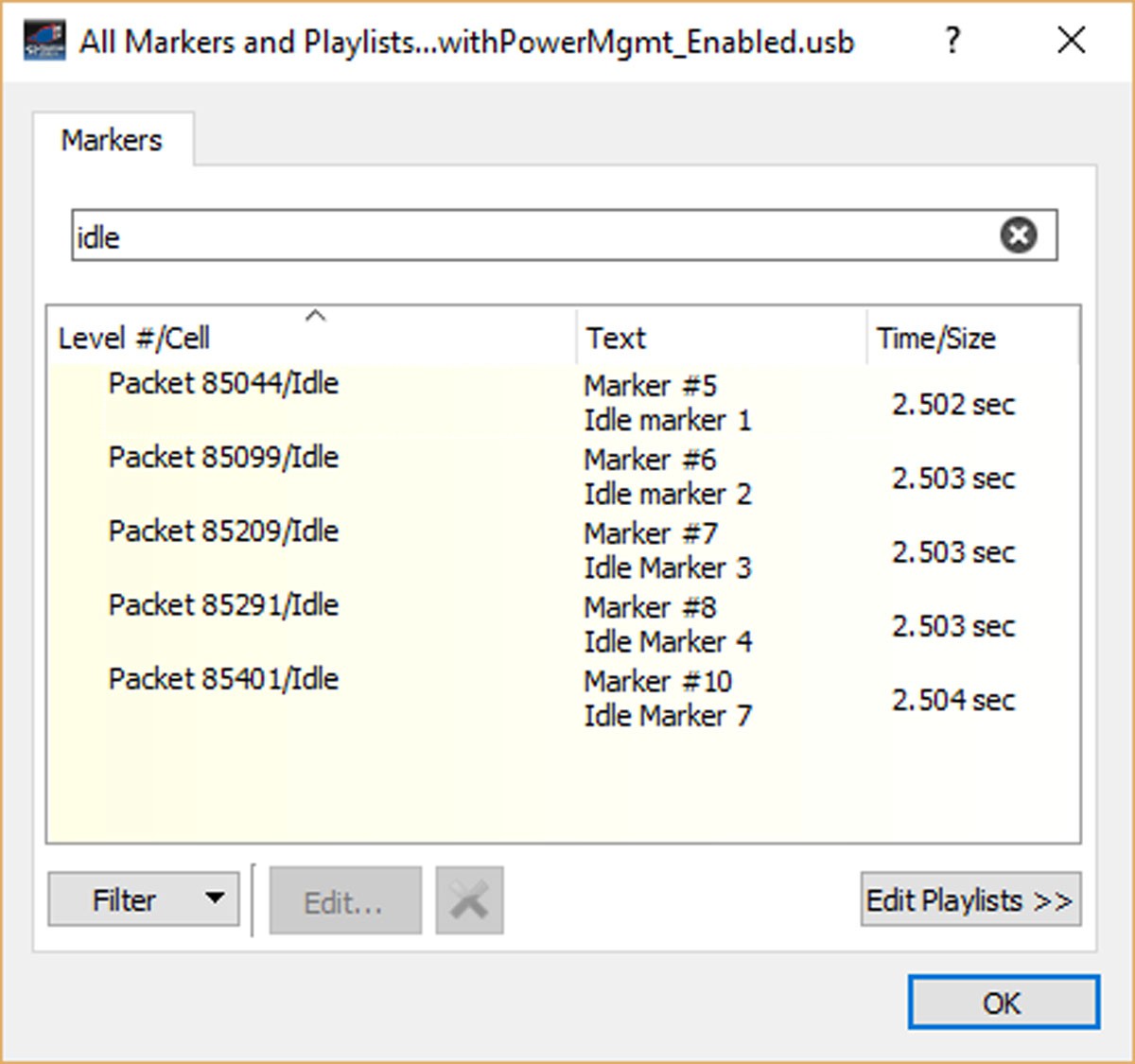
You can search for a specific set of markers by simply entering the type of marker you’re looking for into the “Search” window at the top of the dialog. Then you’ll see only the markers with that characteristic.
Delete Markers
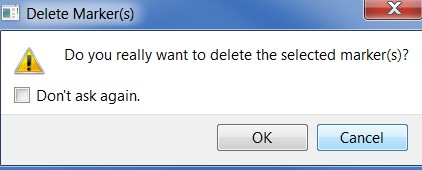
When you click delete to remove markers with attachments, the Delete Marker(s) prompt appears. If you do not wish to see this prompt in the future, seelct “Don't ask again”.
Filter Markers
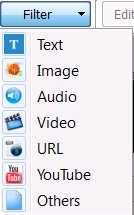
You can filter to show or hide text, image, audio, video, URL, YouTube videos and other files.