
You can check for software updates manually, or the application can automatically check for updates at startup. Download the latest version of the USB Protocol Suite software from https://teledynelecroy.com/sw/usb/
NOTE: To check for software updates and to download available updates, you need an open internet connection.
Manually Check for Software Updates
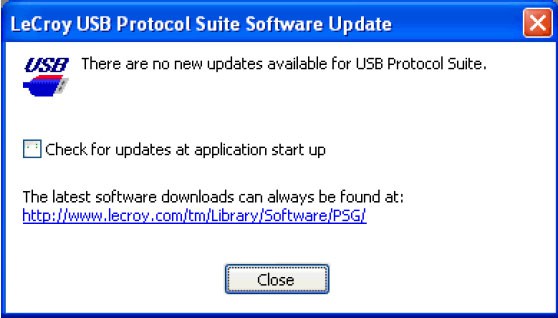
Go to Help > Check for Updates to display the Software Update window. If no update is available, you will see the following message:
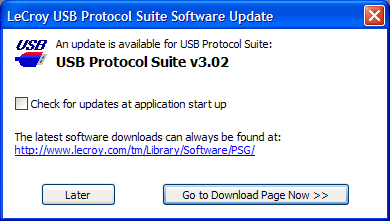
If an update is available, the message is:
-
To install an available update, click Go to Download Page Now. This takes you to the Teledyne LeCroy website.
-
Follow the on-screen instructions to download and install the software update.
-
To install available updates later, click Later. The window closes and you are returned to the application.
NOTE: When you are ready to install updates, go to Help > Check for Updates, then download and install the software update.
Automatically Check for Software Updates
You can set the application to automatically check for software updates, either during software installation or in the installed application.
NOTE: To automatically check for software updates, you need an open internet connection.
After enabling automatic software update checking, when you start the application, the application checks for any software updates. If an update is available, the application notifies you.
NOTE: Automatic checking for software updates does not download, install, or update the application. It only notifies you that an update is available. After receiving the notification, you must use the Software Update window to download and install the latest version of the application.
During Software Installation
During software installation, a window asks if you would like to receive automatic notification when software updates are available. Select the checkbox to enable automatic checking for software updates.
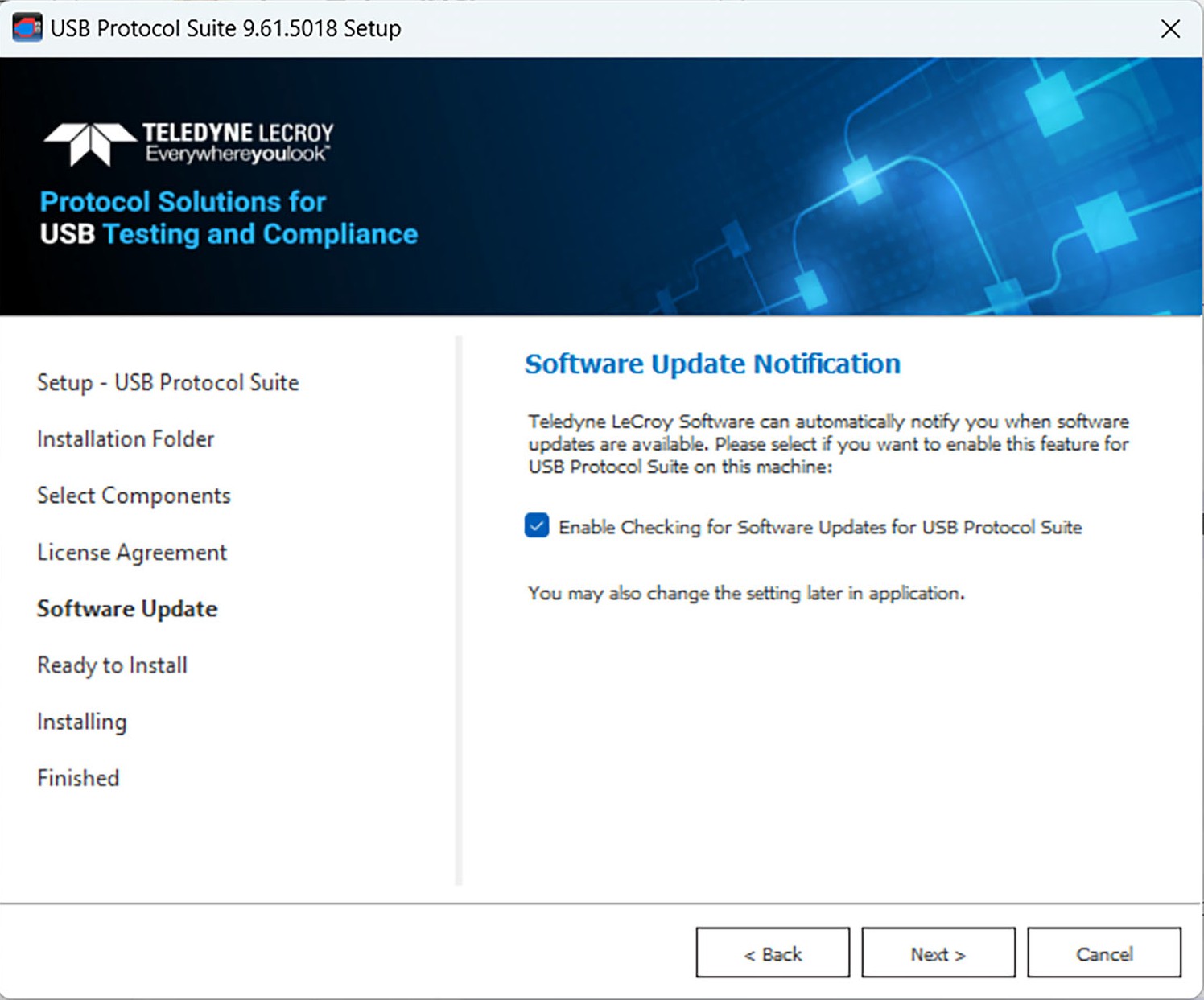
When you enable automatic notification of software updates, you accept the Teledyne LeCroy Privacy Policy Agreement. Click the Open Privacy Policy button to view the agreement.
In the Application
In the application, you can set the software to automatically check for software updates:
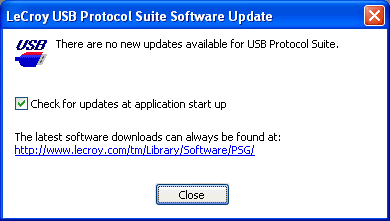
Select Help > Check for Updates to display the Software Update message. If no update is available, the window is:
If an update is available, the message is:
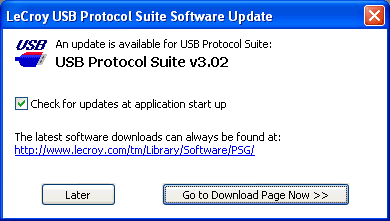
To enable automatic checking for software updates, select Check for updates at application start up.
The next time you open the application, if you have an open Internet connection, the application will notify you if an update is available.