
The USB Protocol Suite Automation is an Application Program Interface (API) that allows users to create scripts or programs of commands and run these scripts or programs locally or remotely over a network. The name Automation is derived from the goal of allowing engineers to automate test procedures.
The Automation API is intended to support a single (1) Teledyne LeCroy Analyzer/Exerciser unit.
The USBTracer, USB Advisor, and Voyager USB Protocol Suite Automation API is composed of a command set that duplicates most of the functionality of the USB Protocol Suite Graphical User Interfaces. Automation is implemented through the use of scripts or programs that the user can write using late binding scripting languages such as VBScript and WSH or early binding languages such as C++. Teledyne LeCroy provides examples of scripts written in WSH, VBScript, and C++.
Once an Automation script or program has been created, it can be run on the PC attached to or transmitted to the PC over a network from a remote location. Automation uses the Distributed Component Object Model (DCOM) protocol to transmit automation commands over a network. When run over a network, the Host Controller is configured as a DCOM server and the remote PC is configured as a DCOM client.
Note: If you are using any application that uses the Automation Interface to the USB Protocol Suite, and the system prompts you that it cannot write a trace file to disk:
-
Make sure that the trace-file destination folder has write/create permissions. (For example, the target directory might be the network file system, which typically does not have write/create permissions.)
-
Make sure that the Windows (or other) Firewall Settings for USB Protocol Suite are set to Public.
System Requirements
Automation is supported with USB Protocol Suite software version 3.0 or higher. If you have an older version of the software, you must upgrade. You can get a new version of software from the Teledyne LeCroy web site, www.teledynelecroy.com/support. The Automation software including examples is included in the installation of the USB Protocol Suite software.
IMPORTANT! To compile with the correct linkage to the USB Automation API code, you must move the USBAutomation.tlb file from the application's installed directory into a directory from which your compiler can access the file. For example, for Visual Studio, this typically is the directory that contains your project file and sources.
Setting Up Automation for Local Use
If you intend to run Automation on the Analyzer Host Controller (the PC attached to the Analyzer), you do not need to perform any special configuration. You can simply execute the scripts or programs you have created, and they run the Analyzer.
Setting Up Automation for Remote Use
If you intend to run automation remotely over a network, you must perform DCOM configuration. These steps are described in DCOM Configuration.
The USB Protocol Suite API exposes the following objects and interfaces:
|
Objects |
Interfaces |
Description |
|
UsbAnalyzer |
|
|
|
|
IUsbAnalyzer IUsbAnalyzer3 |
Primary Analyzer interface |
|
|
_IAnalyzerEvents |
Analyzer event source |
|
UsbTrace |
|
|
|
|
IUsbTrace |
Trace file interfaces |
|
|
IUsbTrace2 |
|
|
UsbRecOptions |
|
|
|
|
IUsbRecOptions |
Recording options interface |
|
UsbDevice |
|
|
|
|
IUsbDevice |
USB device interface |
|
AnalyzerErrors |
|
|
|
|
IAnalyzerErrors |
Error collection interface |
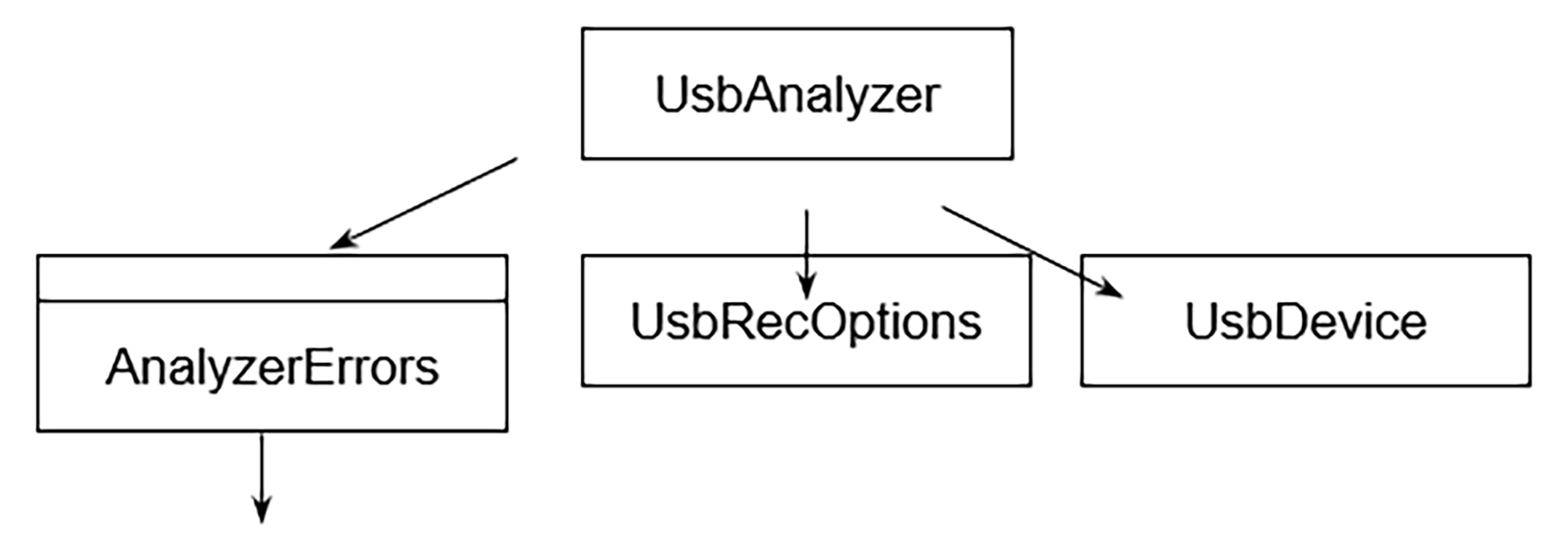
Only the UsbAnalyzer object can be created at the top level (that is, via the CoCreateInstance call) Instantiation of an object of other classes requires API calls. The following diagram represents the object dependencies:
All interfaces are dual interfaces, which allow simple use from typeless languages as well as from C++.
All objects implement the ISupportErrorInfo interface for easy error handling from the client.
The examples of C++ code given in this document assume using the “import” technique of creating COM clients, using the corresponding include statement:
#import "UsbAutomation.tlb" no_namespace named_guids
and creating appropriate wrapper classes in .tli and .tlh files by the compiler.
Samples of WSH, VBScript, and C++ client applications are provided.
Error Return Codes
|
ANALYZERCOMERROR_UNABLEOPENFILE |
= 0x80040201 |
|
ANALYZERCOMERROR_INVALIDTRACEHANDLE |
= 0x80040202 |
|
ANALYZERCOMERROR_UNABLESTARTRECORDING |
= 0x80040203 |
|
ANALYZERCOMERROR_UNABLELOADDO |
= 0x80040204 |
|
ANALYZERCOMERROR_UNABLESTOPRECORDING |
= 0x80040205 |
|
ANALYZERCOMERROR_UNABLESAVE |
= 0x80040206 |
|
ANALYZERCOMERROR_EVENTSINKNOTINSTANTIATED |
= 0x80040207 |
|
ANALYZERCOMERROR_INVALIDPACKETNUMBER |
= 0x80040208 |
|
ANALYZERCOMERROR_INVALIDERROR |
= 0x80040209 |
|
ANALYZERCOMERROR_INVALIDVERSIONTYPE |
= 0x80040210 |
|
ANALYZERCOMERROR_ANALYZERNOTCONNECTED |
= 0x80040211 |
|
ANALYZERCOMERROR_UNABLESTARTGENERATION |
= 0x80040212 |
|
ANALYZERCOMERROR_WRONGCALL |
= 0x80040213 |
|
ANALYZERCOMERROR_UNABLETOMERGEFILES |
= 0x80040214 |
|
ANALYZERCOMERROR_LEVEL_NOT_AVAILABLE |
= 0x80040300 |
|
ANALYZERCOMERROR_VARIANT_TYPE_ERROR |
= 0x80040301 |
|
ANALYZERCOMERROR_REGISTER_WRITE_FAIL |
= 0x80040302 |
|
ANALYZERCOMERROR_DAC_CALIBRATION |
= 0x80040303 |
|
ANALYZERCOMERROR_INDEX_OUT_OF_RANGE |
= 0x80040304 |
|
ANALYZERCOMERROR_REGISTER_READ_FAIL |
= 0x80040305 |
|
ANALYZERCOMERROR_UNABLE_TO_LOAD |
= 0x80040306 |
Note Regarding VBS Return Values
A recent update to the Microsoft Visual Basic Interpreter causes it to no longer perform the implicit type conversions that it once did.
There is a very simple workaround for these issues. The "CLng" VBS function does needed conversions and helps to avoid the runtime errors. See examples below.
Old Code
SwVersion = Analyzer.GetVersion(0)
New Code
SwVersion = CLng(Analyzer.GetVersion(0))