
A .utg file is a text file that can be edited with any text editor such as Notepad. A better editing option, however, is Script Editor of the application. Script Editor provides the usual editing functions such as select, cut, copy, and paste but also adds tool-tips, colored keywords, drop- down parameter values, and expandable/collapsible packet data fields.
To launch the Script Editor, click the Script Editor 
The Script Editor window opens in the lower portion of the trace window.
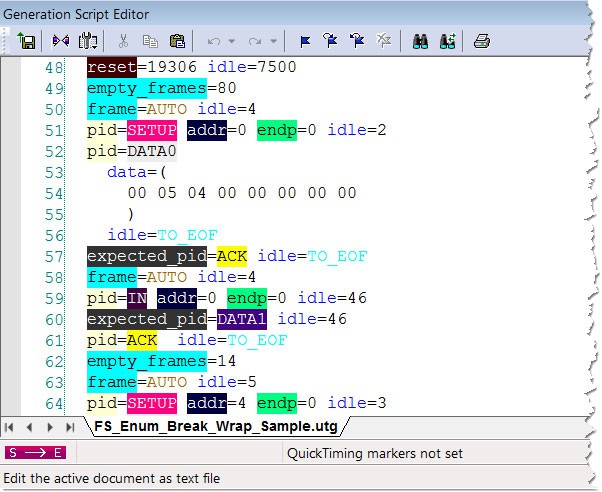
The Script Editor divides into three areas:
-
Toolbar
-
Script window
-
File tabs (at the bottom of the window)
If errors occur, a log opens at the bottom of the window.
Toolbar

The Script Editor toolbar contains buttons for saving your edits, navigating, searching and other functions.
The buttons have the following functions:
|
Button |
Functionality |
|
Button |
Functionality |
|---|---|---|---|---|
|
|
Save. Saves your edits and immediately updates the setting bars and Frames shown in the trace window. |
|
|
Add/Remove bookmark. Allows markers to be set or removed to aid in navigation. |
|
|
View Options. Opens a menu with four options: Enable Outlining, Toggle Outlining, and Line Numbers. See View Options Menu, below. |
|
|
Go to next bookmark. |
|
|
Go to Trace View. |
|
|
Go to previous bookmark. |
|
|
Cut |
|
|
Clear all bookmarks. |
|
|
Copy |
|
|
Find |
|
|
Paste |
|
|
Find and Replace |
|
|
Undo |
|
|
|
|
|
Redo |
|
|
|


View Options Menu
The View menu has four options:
-
Enable Outlining: Adds an expandable/collapsible tree structure to the left side of the Script Editor showing the hierarchical relationships of the script lines.
-
Show Line Numbers: Adds line numbers to the left side of the Script Editor window.
-
Show Tooltips: Enables tooltips to appear when the mouse pointer is suspended over a script item.
-
Enable Intellisense
Pop-up Menu
Right-click anywhere in the script window to open a pop-up menu with the following options:
-
Cut
-
Copy
-
Paste
-
Position Trace View on Packet xxx
-
List Values
-
Toggle Outlining
The List Values option displays the types of values that can be entered for a parameter in a line. To see the types of values, select the current parameter, then choose Show Values from the pop-up menu.
File Tabs
At the bottom of the window is a tab that shows the name of the .utg file. If your .utg file has an Include statement in it, the supporting Include files automatically open when the .utg file is first opened. Tabs for the opened Include files appear at the bottom of this window.

Error Log
Whenever you create a scripting error, a log opens at the bottom of the application window. When the error is corrected, the window automatically closes.
Tooltips
The Script Editor window includes extensive tooltips for each keyword. To see a tooltip, hover the mouse pointer over a keyword.