
To modify the colors, formats, and hiding options, choose the Color/Format/Hiding tab.
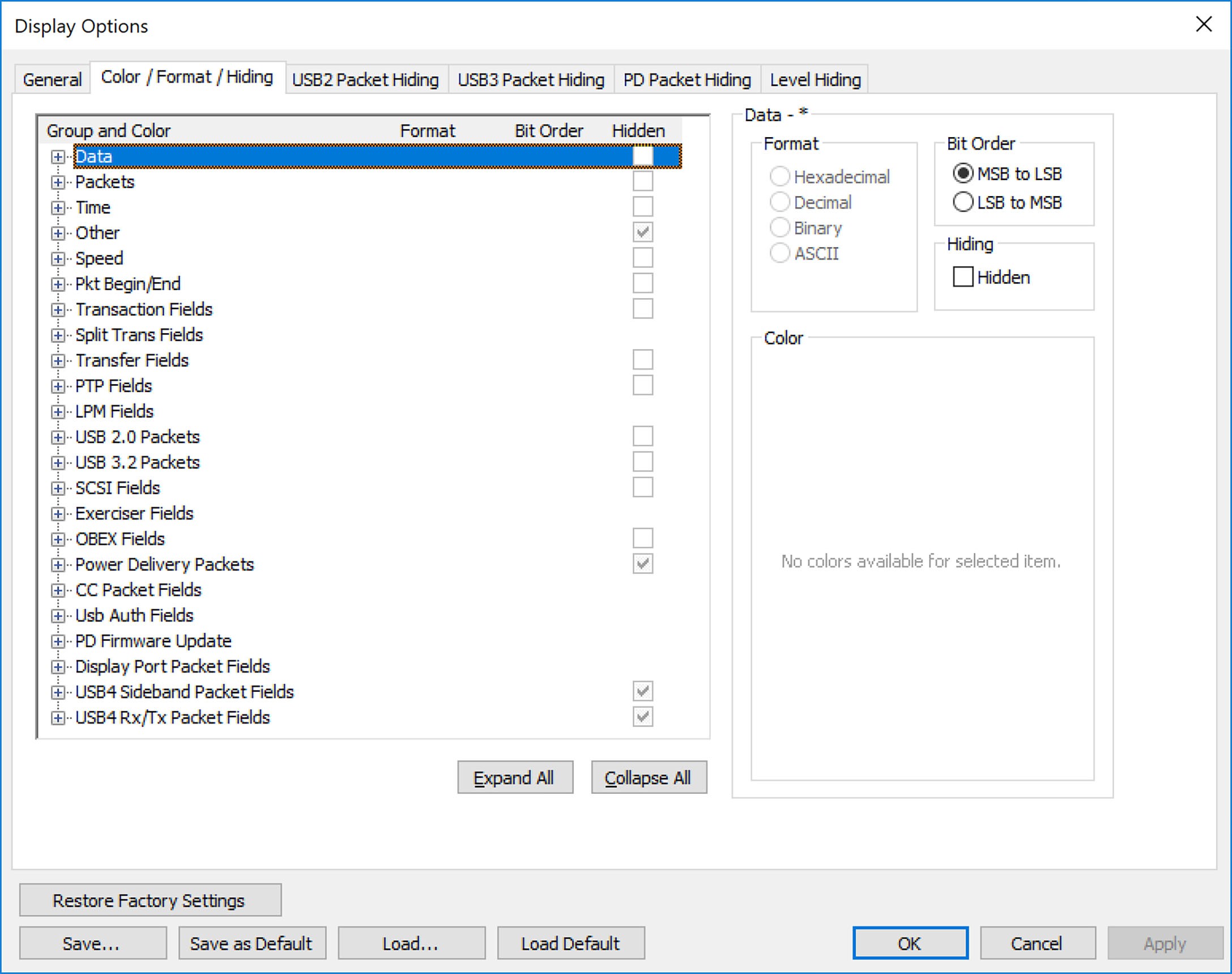
Color Display Options
The program uses a default set of colors for each type of data in each group of data. The colors and color combinations are appropriate for most graphic systems. You can alter any color.
To specify a color for an information type, in the Color/Format/Hiding tab, select a row (such as Data) in the Group and Color column and expand it.
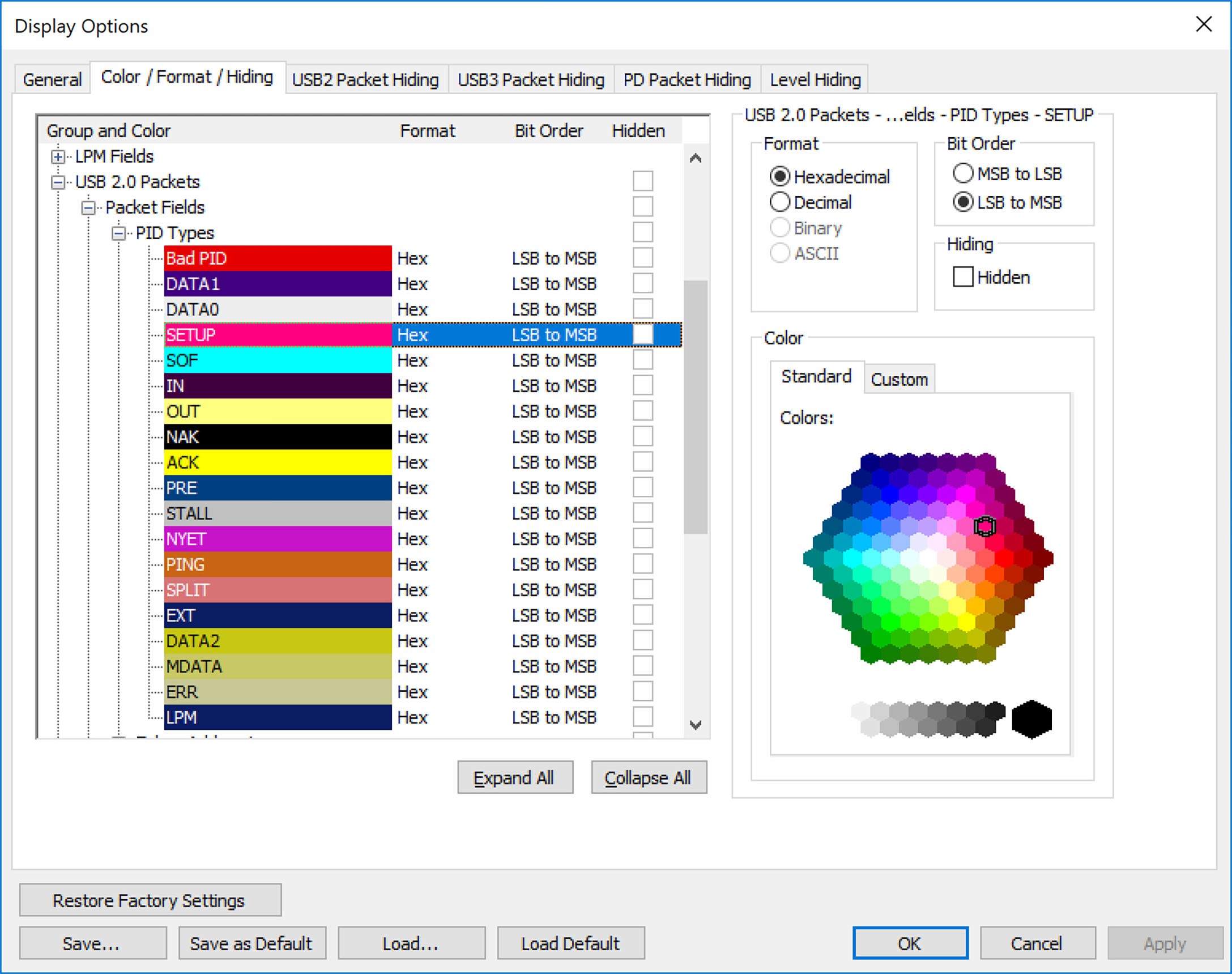
Select a data type (such as Data Length) in the Group, then select a color in the Color section, using Standard or Custom colors. Use a bright color for each important field.
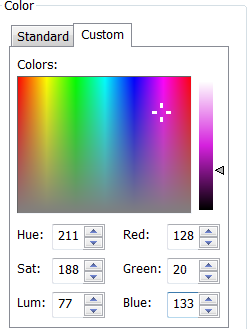
Use the Custom tab to customize colors.
NOTE: You cannot change the color of the Invalid Data (packet error) field. It is permanently set to red.
Format Display Options
For each type of data in each group of data, the program has a default data format. Examples of number data formats are Bin (binary), Dec (decimal), and Hex (hexadecimal). Examples of date and time data formats are Hex uFrame, Dec uFrame, Date & Time, Time, Bit Time, seconds, microseconds, and nanoseconds. An example of a text data format is ASCII. You can alter some data formats.
To specify a data format for an information type, in the Color/Format/Hiding tab, select a row (such as Packet Fields) in the Group and Color column and expand it (see the following figure).
Select a data type (such as PID Types) in the Group:
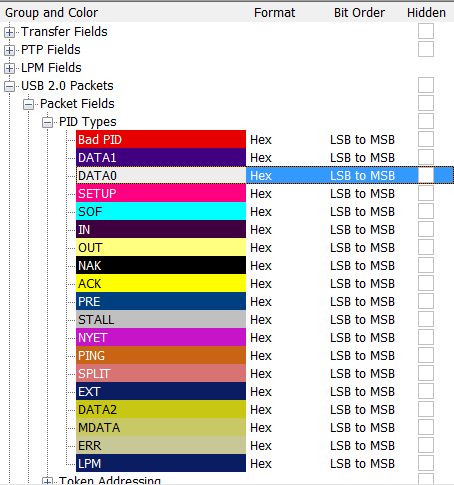
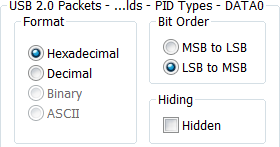
Select a format in the Format section. If available, select Bit Order in the Format section. The options are MSB to LSB or LSB to MSB. Formats available for PID Types are shown below.
Hiding Display Options
By default, no data is hidden. You can hide any group of data and any type of data. You can hide transactions; SOFs, NAKs, High, Full, or Low Speed packets; traffic from one or both recording channels; and Addresses and Endpoints.

To hide one or more fields, select the Group and Data type in the Group and Color column, then click the Hidden checkbox in the display or the Hidden checkbox in the Hidden section of the Format section.