
General Information
Use the USB4 Decoding Settings Dialog to set decoding parameters manually when automatic decoding is insufficient or incomplete. This dialog includes the following sections:
Decode Settings Dialog Options
You can manually change values in the USB4 Decoding Settings Dialog.
-
Use the Pen icon in a header to manually change any value in the rightmost column, then click OK to apply the adjusted decoding.
-
When Keep Across Recording and OK are selected, the decoding assignments will be preserved in the current USB Protocol Suite application session.
-
Decoding assignments will also be applied to new recordings with a lower priority than automatically detected decoding assignments.
-
-
Click Save to save decoding parameters to an external file for future use.
-
Press Load to load a file with previously saved decoding parameters, then click OK to apply them.
-
Select Reset Decoding to manually reset decoding to automatically decoded parameters.
-
Click Cancel to exit from the USB4 Decoding Settings Dialog without applying modified parameters.
NOTE: OK/Load/Save/Cancel/Reset operations are related only to the currently selected trace for which USB4 Decoding Settings is opened; other opened traces are not affected by these operations.
-
OK/Load/Save/Cancel/Reset operations are applied to all groups of settings (Tunneled Hop ID Protocols, Adapter Types, DisplayPort Adapter Parameters, Host Interface Adapter Parameters, and DROM Types)
-
Once OK has been selected, the modified parameters are stored permanently in a trace.
Automatic Decoding
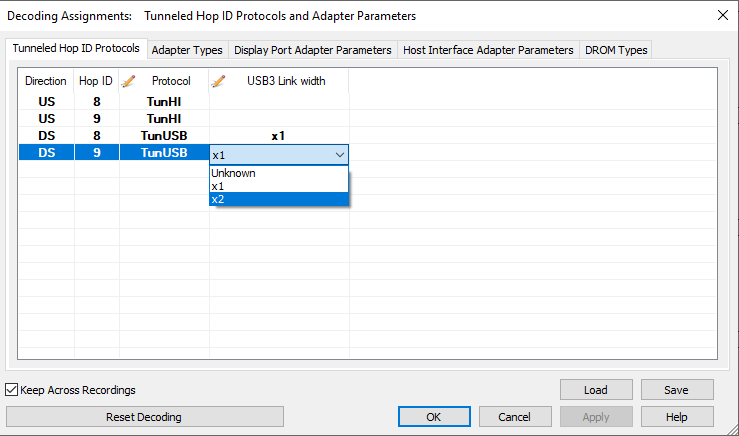
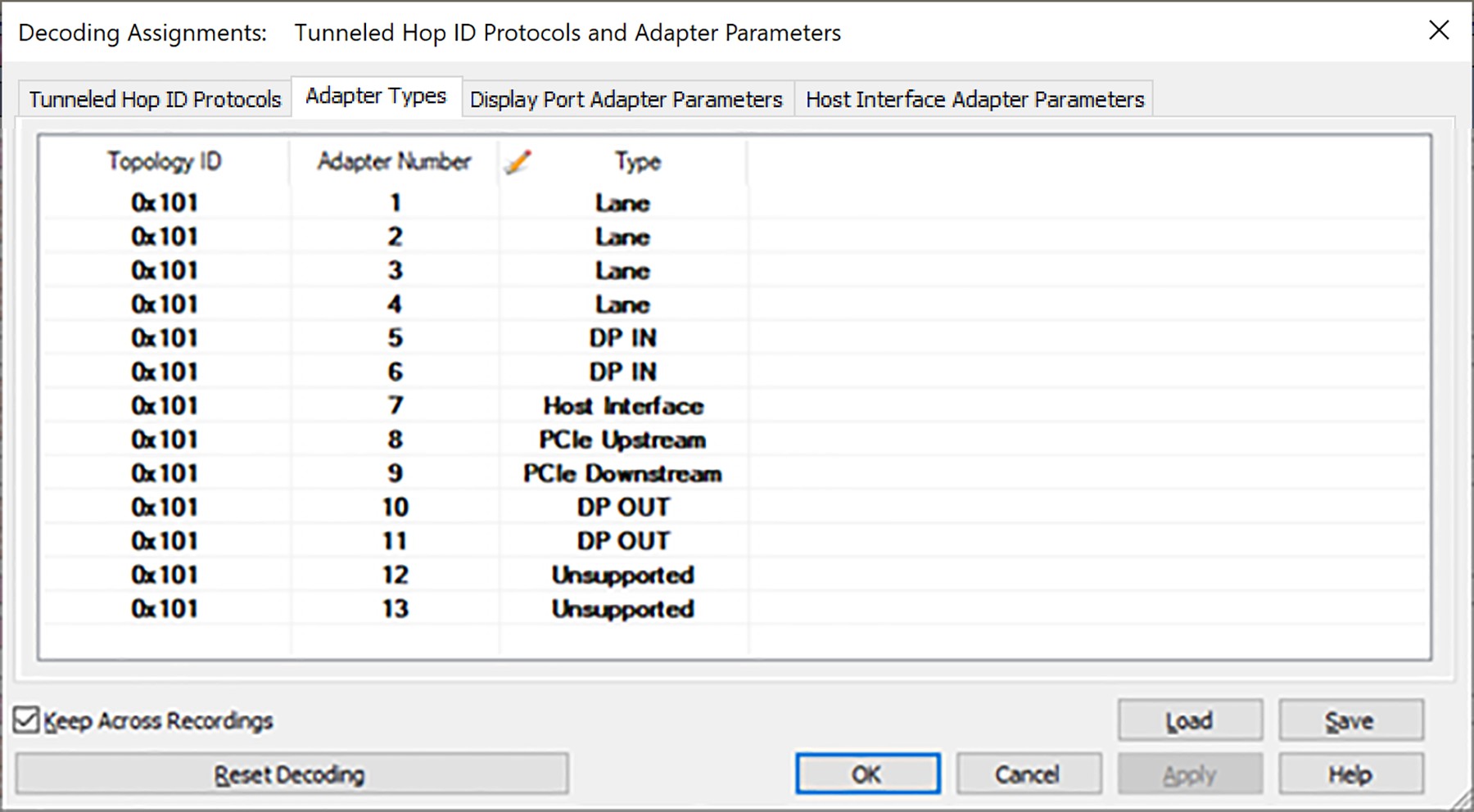
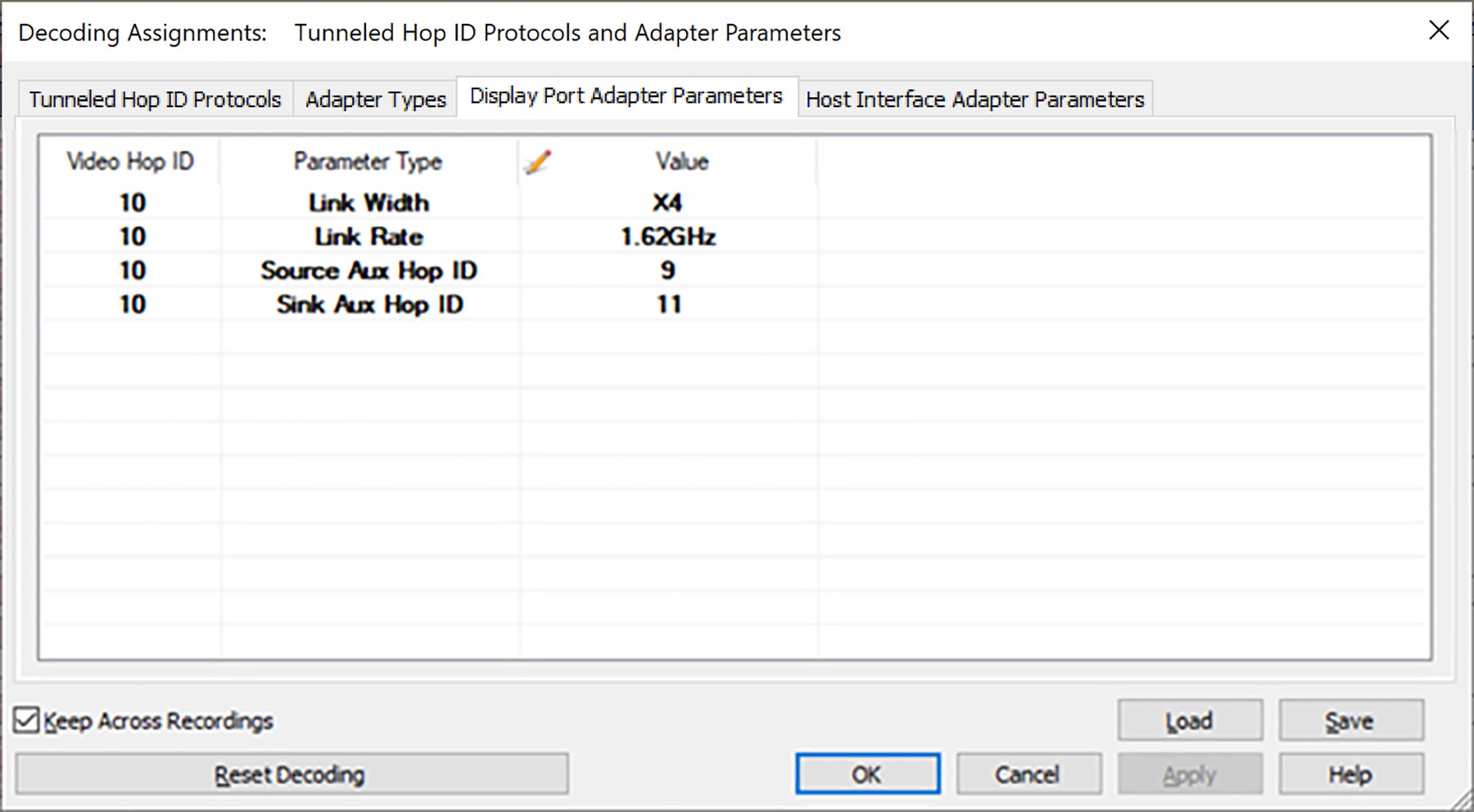
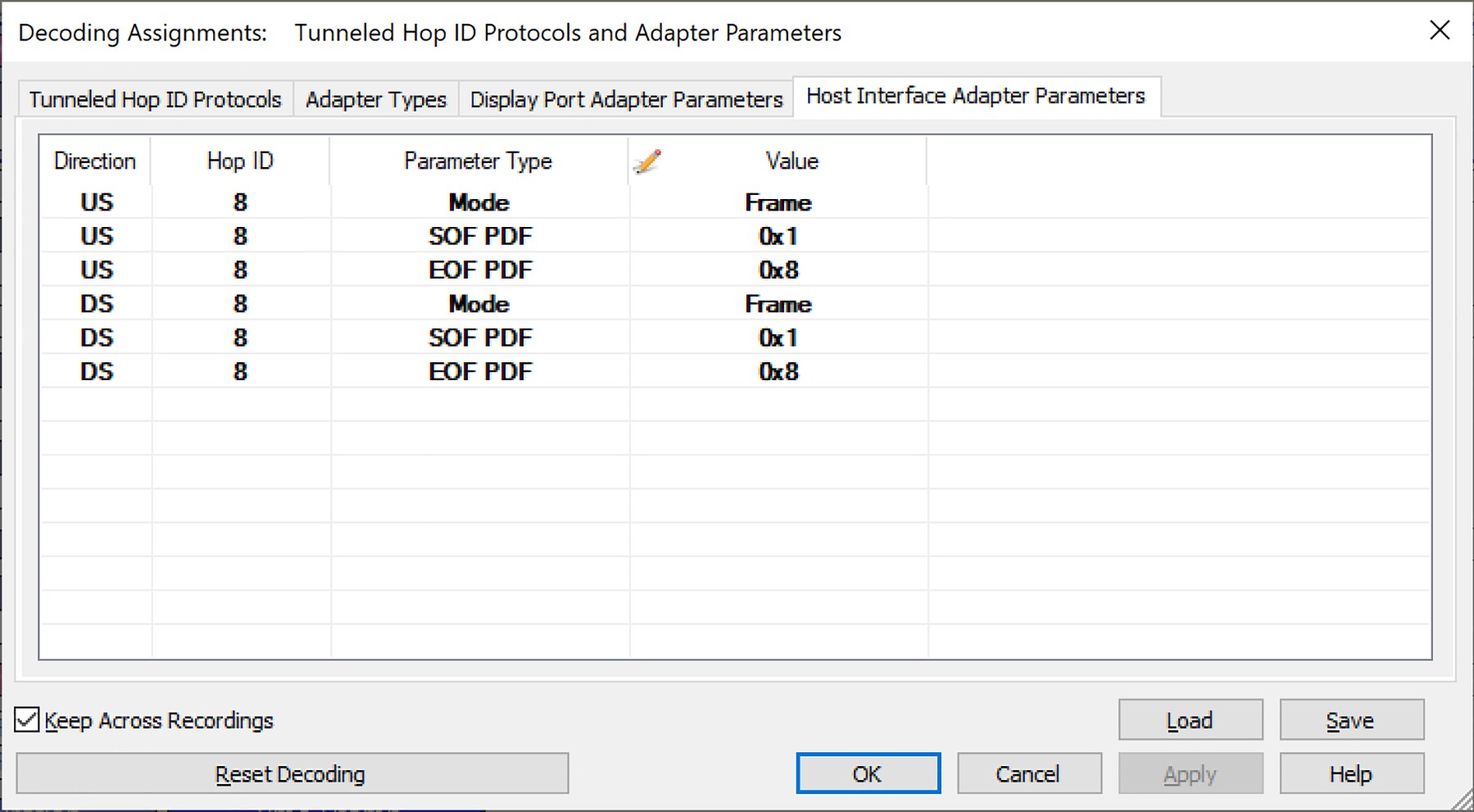
The USB4 Decoding Settings dialog shows all parameters that were successfully set when automatic decoding is complete. See the following images.
Tunneled Hop ID Protocols
Each tunnel in a USB4 fabric is identified on the link by a Hop ID. The software assigns these Hop IDs to their protocols automatically from the USB4 configuration traffic in the trace, rather than by inspecting the tunneled payload.
When the Connection Manager sets up a tunnel, it configures a Path through the fabric by writing the Path Configuration Space of the adapters along the route. The software follows these path setups and, at each point where a Lane Adapter connects to a Protocol Adapter, maps the Hop ID used on that link to the protocol reported by the Protocol Adapter’s configuration space (PCIe, USB3, DP, DPAUX, or HI). Because a DisplayPort adapter carries video and Aux traffic on separate Hop IDs, each DisplayPort Hop ID is additionally matched against the adapter’s Video and Aux Hop IDs to distinguish DP (Main Link) from DPAUX.
Automatic detection therefore depends on the trace containing the configuration traffic that establishes the tunnels. If a tunnel was set up before the recording began, or that configuration traffic was otherwise not captured, the affected Hop IDs cannot be resolved automatically and are assigned to “None”, as described below.
If tunneled protocols are auto-detected successfully, the Hop IDs assigned to one of the corresponding protocols, “PCIe/USB3/DP/DPAUX/HI” in USB4 Decoding Settings Dialog, will appear here.
If some tunneled protocols are not auto-detected, the corresponding Hop IDs are assigned to “None”. You can change “None” to the appropriate protocol and press OK to see the decoding results.
If the USB3 Link Width was not auto-detected, you can configure it manually here.
Adapter Types
If there is configuration traffic with access to the Protocol Adapter configuration space, the user can change the protocol for the adapter specified by Topology ID and Adapter Number.
DisplayPort Adapter Parameters
If there is DisplayPort Main Link traffic, the user can modify DisplayPort decoding parameters for the DisplayPort Adapter specified by Hop ID. These parameters include:
-
Link Width of the DisplayPort Main Link
-
Link Rate of the DisplayPort Main Link
-
Source/Sink Aux Hop IDs of the DisplayPort Aux links associated with the specified Video Hop ID (Main Link)
Host Interface Adapter Parameters
For each Channel/Direction/Hop ID/Parameter Type, the user can assign an appropriate value.
DROM Types
For each Topology ID and Adapter Number, the user can assign a DROM Type of USB4 or TBT3.