Commands are transferred on USB using special control transfers called USB Device Requests. The analyzer can decode Device Requests as they are defined in the USB specifications and various Device Class and Vendor specifications.
Each USB Device Request is sent using a Control Transfer. Each Control Transfer starts with a SETUP transaction.
Decoding USB Device Requests
To Decode a USB Device Request:
Right-click the Control Transfer field or the SETUP field of the USB Device Request to display the USB Device Request menu (shown below).
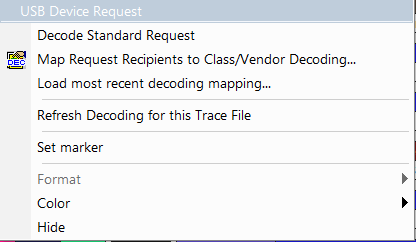
NOTE: The menus shown in this section are context-sensitive. You may see slightly different menus.
-
To refresh decoding, click Refresh Decoding for this Trace File. Use this option to reanalyze all transactions.
-
To use the previous decoding, click Load most recent decoding mapping.
This option loads the most recent mapping of endpoints/requests to decoding types that was done on a previous trace. If the endpoints of the new trace are the same as the last one mapped, the mappings are applied to the current trace. This saves you from having to constantly apply the mapping to a new trace every time the application is restarted and a new trace created.
You can retain the mapping from trace to trace during an application session by clicking the Keep Across Recordings button in the endpoint map menu. This new feature simplifies the process when the application is re-started.
NOTE: You can also change the format, color, and hidden status of fields, using the same methods as in Display Options.
Decoding Standard Requests
To decode a standard request:
-
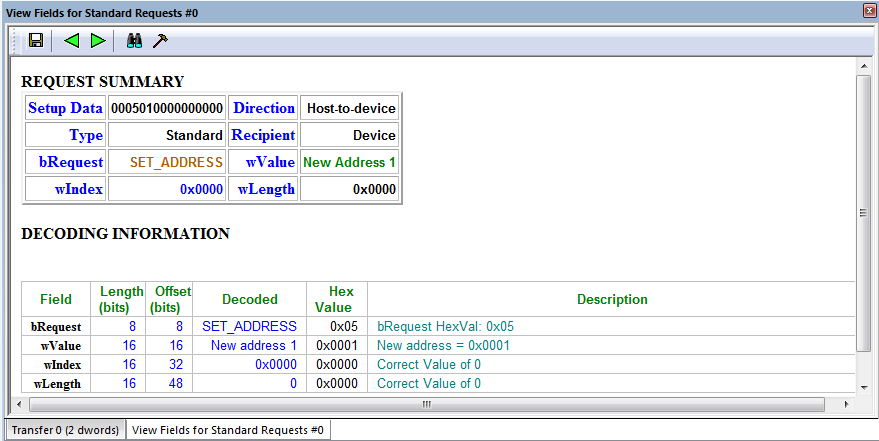
From the USB Device Request menu, select Decode Standard Request. The View Fields for Standard Request window opens.
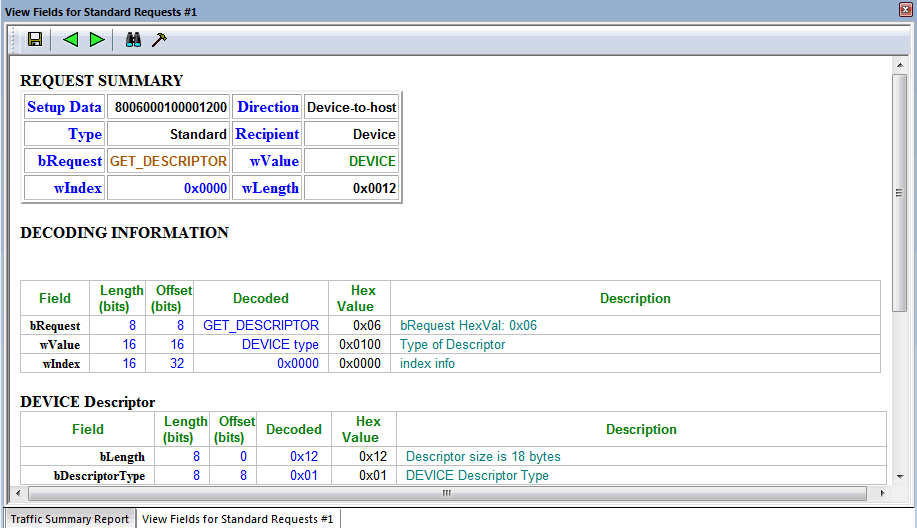
View Fields for Standard Requests Window -
To find a word in the text box, click Find, then enter the word in the Find What field.
-
To use a case-sensitive search, check Match Case.
-
To find only the exact word, check Match Whole Word Only.
-
You can search Up or Down.
-
-
To search, click Find Next.
-
To save the View Fields text box as an HTML file, click the Save As button, enter a file name in the Save As dialog box, then click Save.
-
To view the previous or next Transfer Control field request of the same Request Type, click Previous or Next.
The View Fields for Standard Request dialog box displays field definitions and values of the Standard Request.
For field definitions, refer to the Universal Serial Bus Specification, version 2.0. The USB specification is available from the USB Implementers Forum (USB-IF) at:
|
USB Implementers Forum 1730 SW Skyline Blvd. Suite 203 Portland, OR 97221 |
Tel: +1/503.296.9892 Fax: +1/503.297.1090 Web: http://www.usb.org/ |
Decoding Class Requests
Examples of a class request are:
-
Mass-Strg Class UFI CBI Requests
-
PTP Still Image Class Requests
-
Video Class Requests
-
Wire Adapter Class Requests
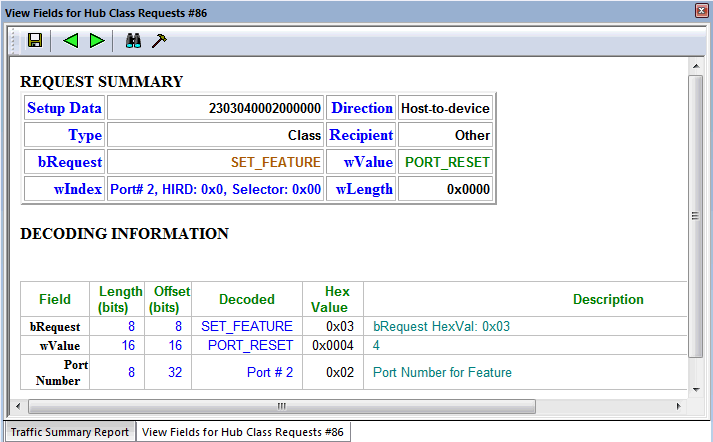
To decode a class request, from the USB Device Request menu, select Decode ... Request. The View Fields for ... Class Requests window appears. The image below shows a View Fields for Hub Class Requests decoding.
Decoding Vendor Requests
To decode a vendor request, from the USB Device Request menu, select Decode ... Request. The View Fields for ... Vendor Requests window appears. An example of a vendor request is Command Set.
Decoding Undefined USB/WUSB Device Requests
A Decoding Request may not belong to any of the defined decoding groups (Standard, Class, or Vendor).
Decoding using Endpoint Information
To decode using the endpoint information:
-
Right-click in the Bulk/Int Transfer field. The Bulk/Int Transfer (IN/OUT transaction with data) menu appears.
-
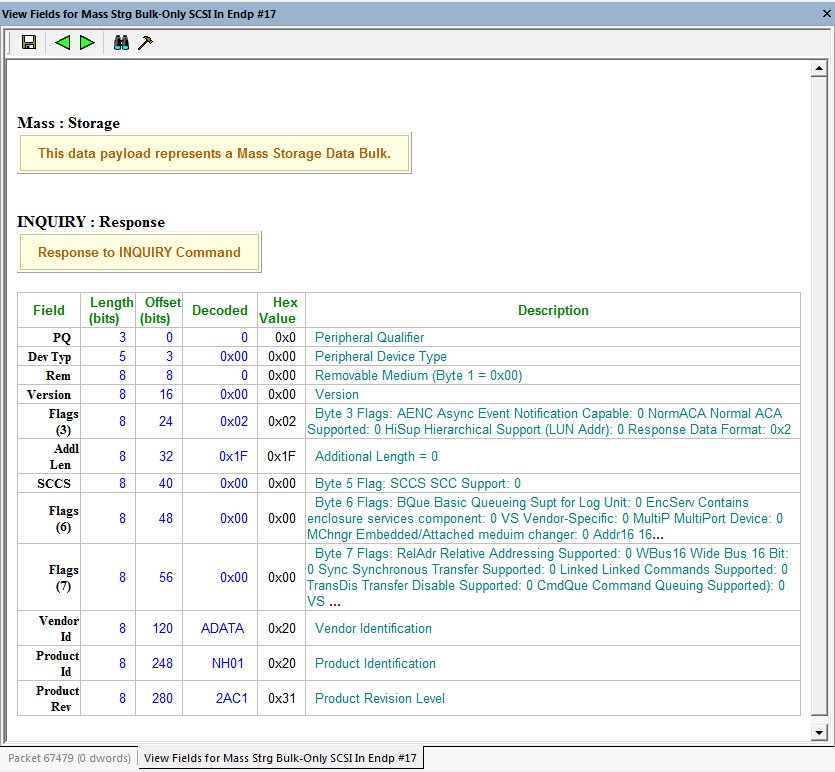
Select Decode as ... Endp. The View Fields for ... Endp window opens. The image below shows a Mass Strg Bulk-Only SCSI IN Endp decoding.
Changing the Layout of Decode Requests
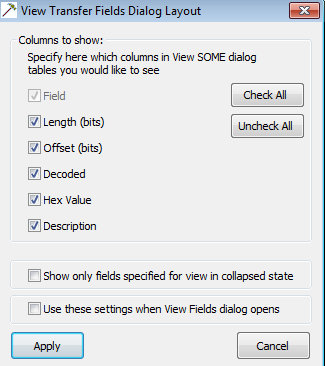
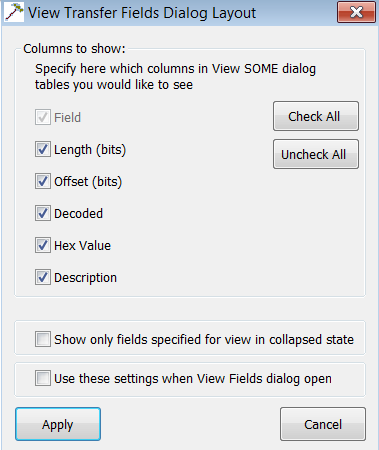
In the View... Fields windows, the Decoding Information and the Descriptor information blocks (following the Request Summary information) have the following columns:
-
Field: such as bRequest, wValue, wIndex, bLength, bDescriptorType, wTotalLength
-
Length in bits
-
Offset in bits
-
Decoded: hex value typically equal to Hex Value
-
Hex Value: hex value typically equal to Decoded
-
Description: short description of field
To display the View Transfer Fields Dialog Layout, click Layout.
Decoded Fields View
This works much the same as the decoder dialog above, except that it is invoked from the toolbar icon and does not block the use of other windows. It can be docked to the side or allowed to float.
|
Button |
Function |
|
Button |
Function |
|---|---|---|---|---|
|
|
Save decoded Fields in .html format. |
|
|
Find text in the View Fields page. |
|
|
Show previous decoded fields. |
|
|
Displays View Transfer Fields Dialog Layout. |
|
|
Show next decoded fields. |
|
|
|