To run a verification script over a trace, you select the main menu item Report > Run verification scripts or click the Run verification scripts button on the main toolbar
The Run verification scripts dialog opens, where you can choose and run one or several verification scripts:
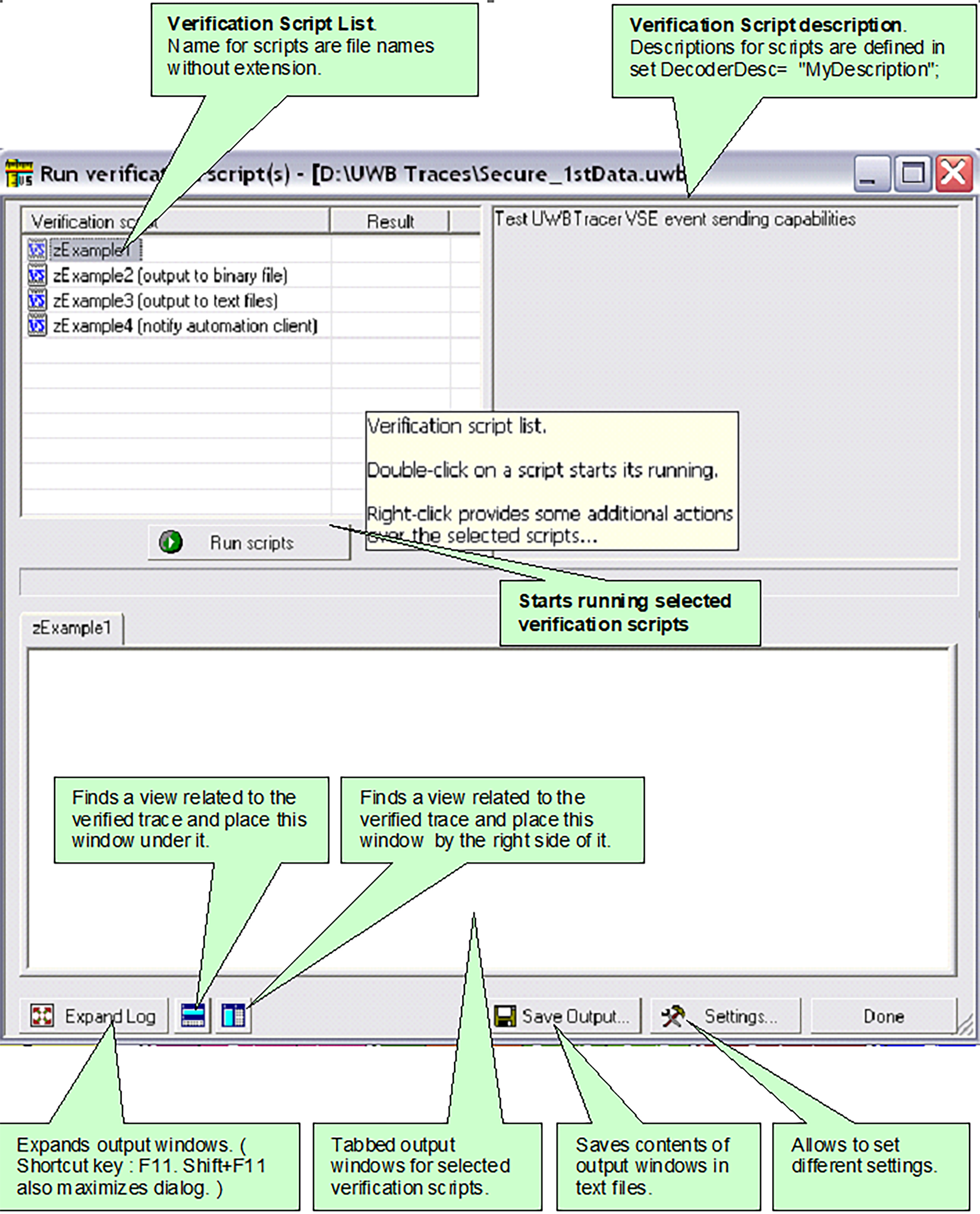
Run Verification Scripts
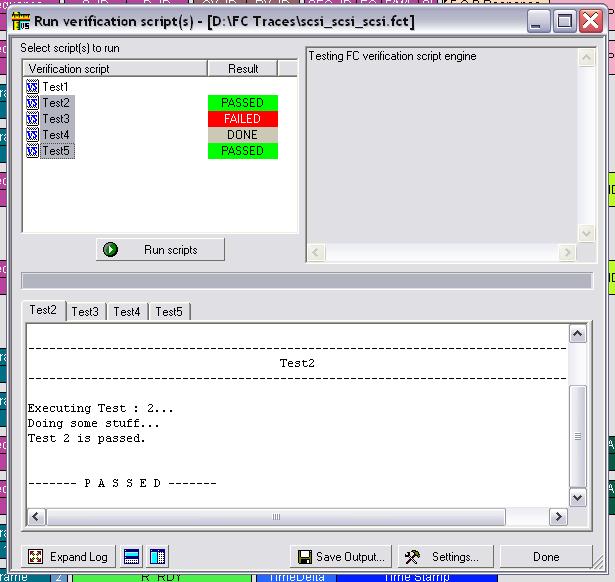
Push the button Run scripts after you select scripts to run. VSE starts running the selected verification scripts, shows script report information in the output windows, and presents the results of verifications in the script list:
Right-click the script list to display additional operations over selected scripts:
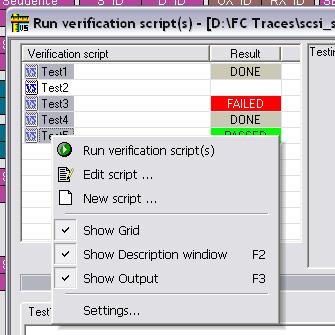
Run verification script(s): Start running selected script(s).
Edit script: Edit selected scripts in the editor application specified in Editor settings.
New script: Create a new script file using the template specified in Editor settings.
Show Grid: Show/hide a grid in the verification script list.
Show Description window: Show/hide the script description window (Shortcut key F2).
Show Output: Show/hide the script output windows (Shortcut key F3).
Settings: Open a dialog to specify different settings for VSE.
VSE GUI Settings
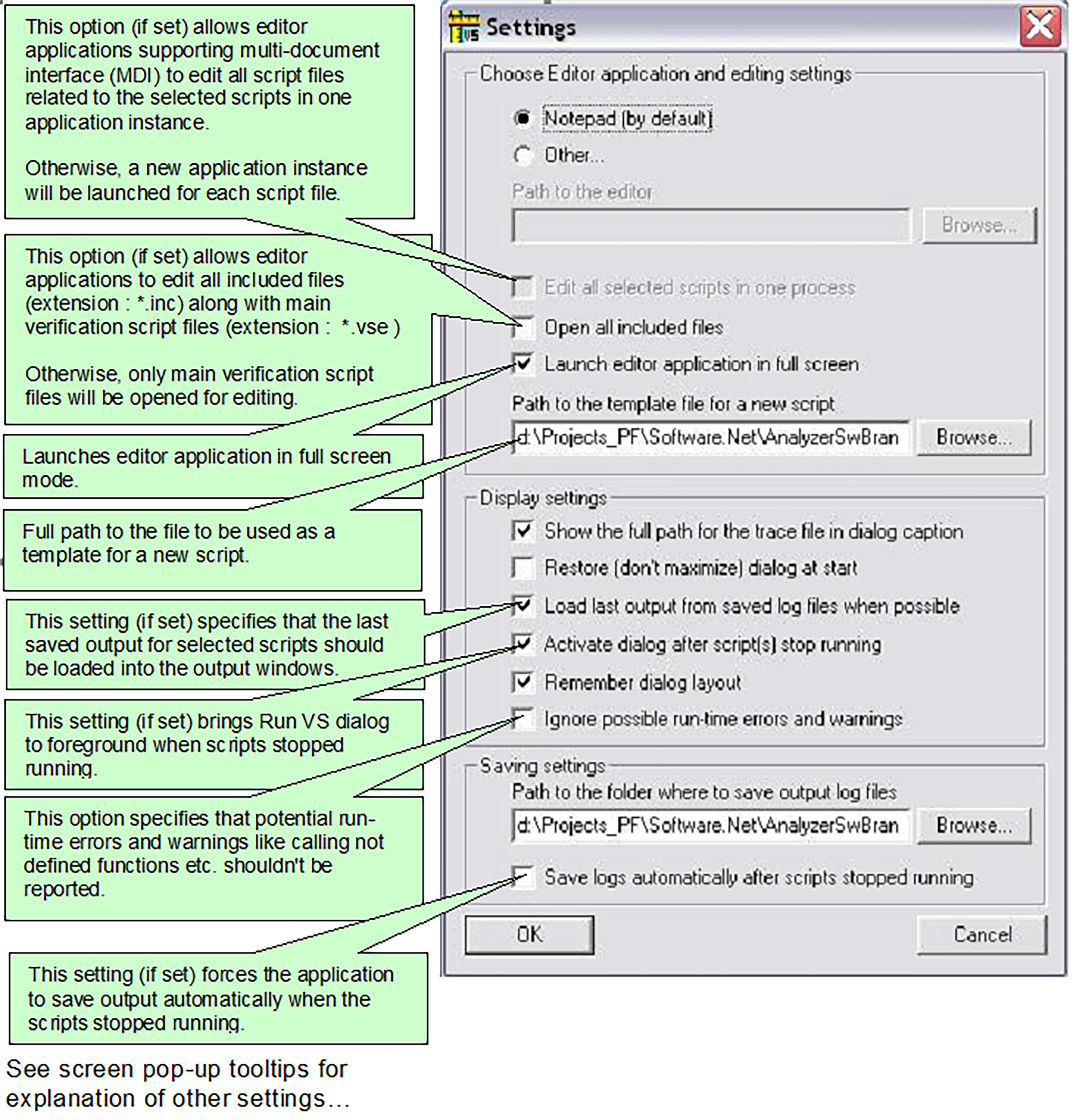
After choosing Settings, the following dialog appears: