
Find allows searches on an open trace using one or more criteria. You can search by packet, transactions, split transaction, transfer, packet type, and fields within packets. You can also search for Standard and Hub Request Types.
To open the Find Dialog, go to Search > Find on the Menu Bar, or click the Search icon 
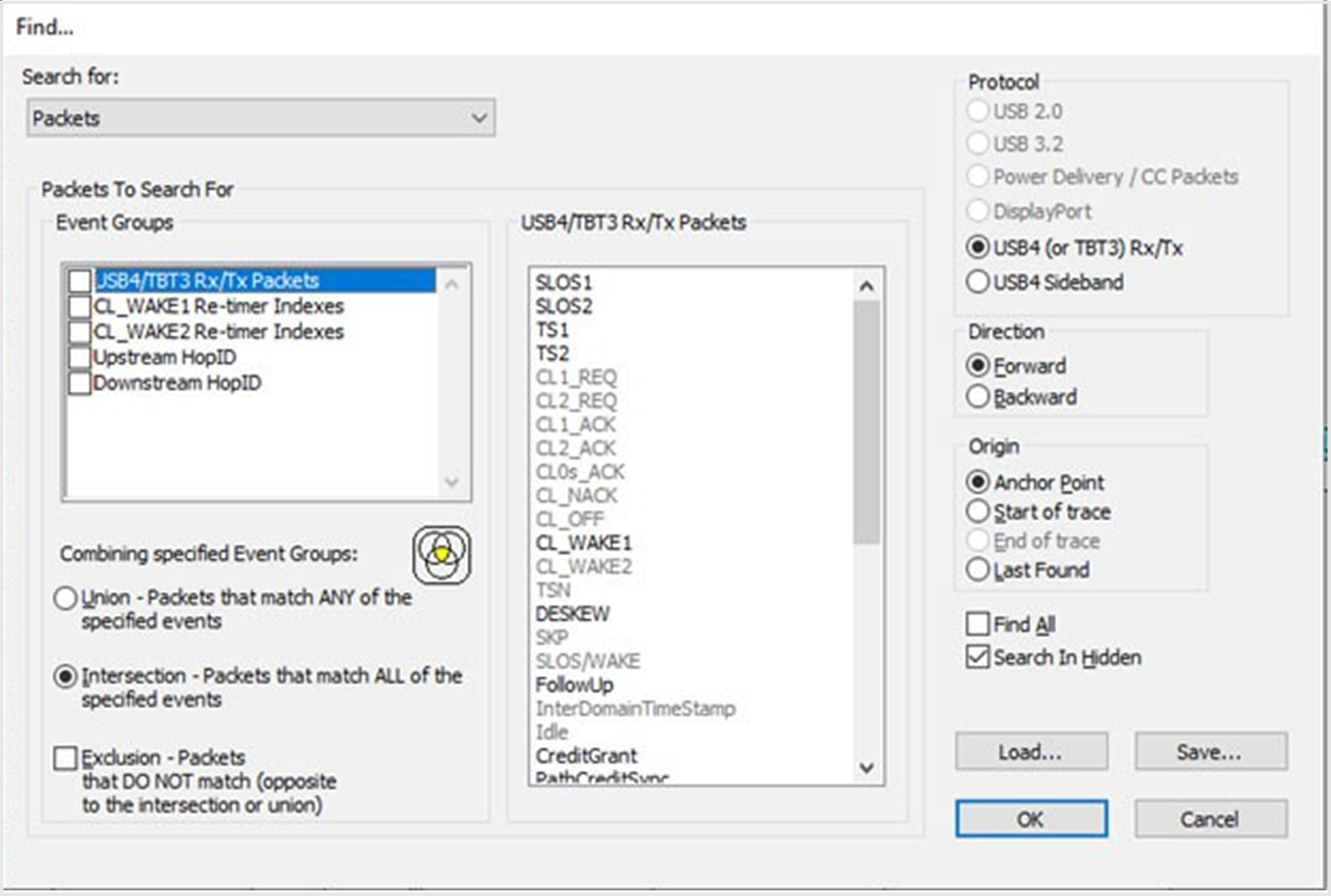
Using the Find Function
Searches can combine criteria using the options Intersection and Union.
-
Intersection creates AND statements such as “Find all packets with x and y.”
-
Union creates OR statements such as “Find all packets with x OR y.”
You can also perform searches in which packets or events are excluded from a trace, using the Exclusion option.
-
Open the Find Dialog.
-
Select the type of traffic you’re interested in from the Protocol area.
-
Select a level of traffic (for example: Packet, Transaction, or Transfer) from the Search for list.
-
Select one or more event types from the Event Groups box.
-
Select one of the following options:


Exclusion works with the other two options:
Select Union AND Exclusion (=Exclude packets with ANY of the following fields)
OR
Intersection AND Exclusion (=Exclude packets with ALL of the following fields)
-
Select any of the following options:
-
Set the search Direction and Origin.
-
Check to Search in Hidden. This option looks for the selected items even if you have currently hidden them.
-
Check to Find All. This option opens a new Trace View window that con- tains ONLY the items for which you are searching. Subsequent searches or actions cannot modify this window, so it never contains any other packets. Use this option only when you want to check how many packets a specific search criterion puts in the Main Trace View.
-
-
Click OK. After the search finishes, the program displays the packets meeting the search criteria.
The resulting item will be shown as selected in the view. Packet Selection works with Find.
Data Pattern Mask and Match
If you select Data Pattern as the Event Group in the Find dialog, you can set the Bitmask, Mask, and Match for each bit.
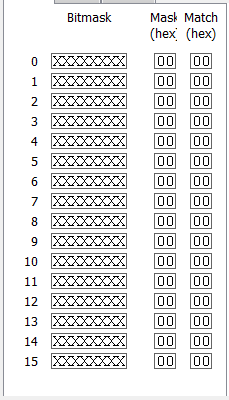
Bitmask and Match always correlate. When you set Bitmask or Match. the other changes to maintain their correlation.
NOTE: If you set Bitmask/Match before setting Mask, the Mask changes to the default mask. You must change to the Mask that you want.
If you set an appropriate Mask before setting Bitmask/Match, the Mask does not change automatically to a default mask if you change Bitmask/Match.
Find USB4 Configuration Space Transfers
Open a Trace with Transfer Layer traffic and click the View Transfer Level icon 
NOTE: All of the configuration space register accesses in traffic listed in different categories are based on the configuration space type (Router/Adapter/ Path/Counters).
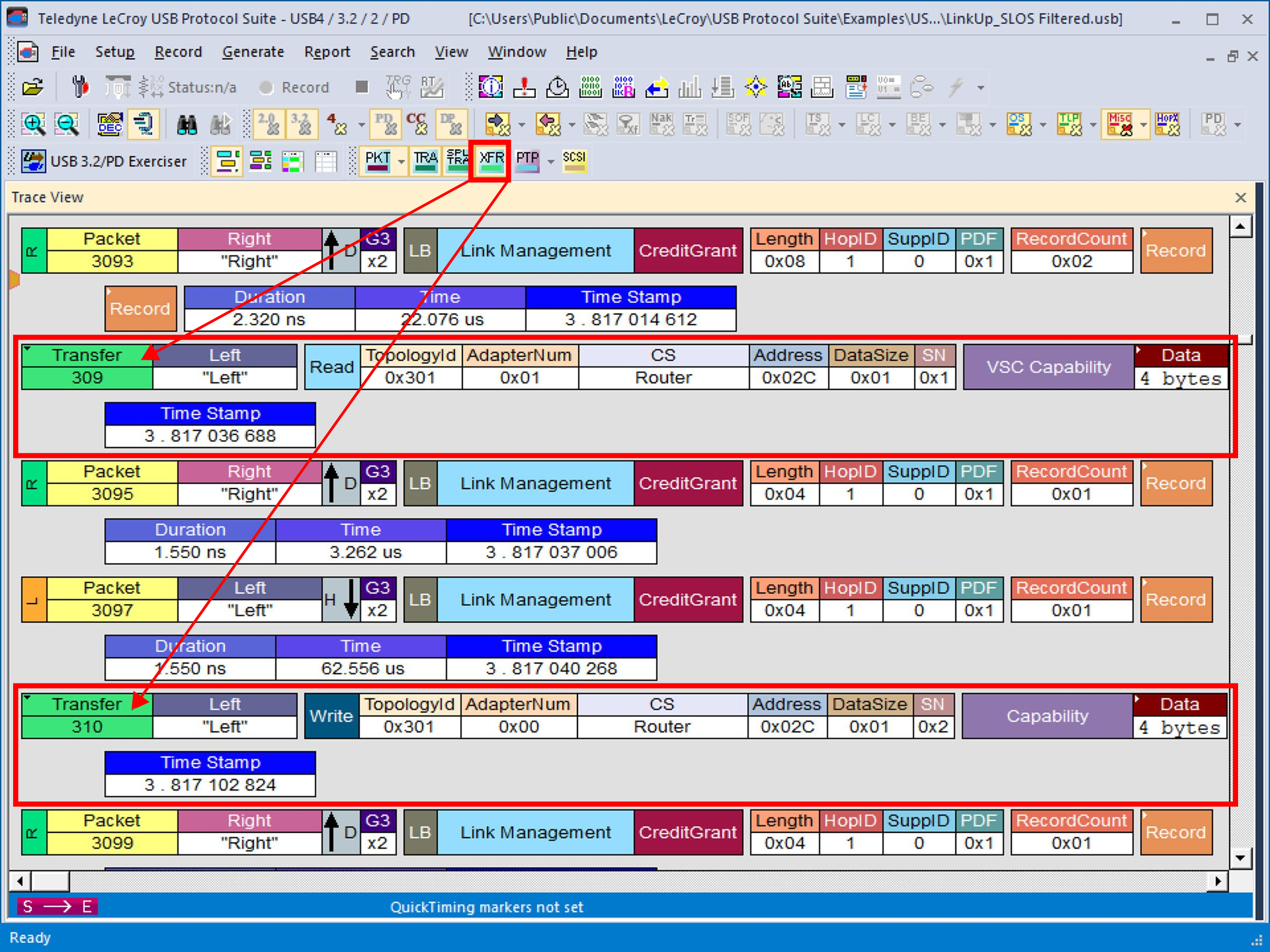
Open the Find dialog window.
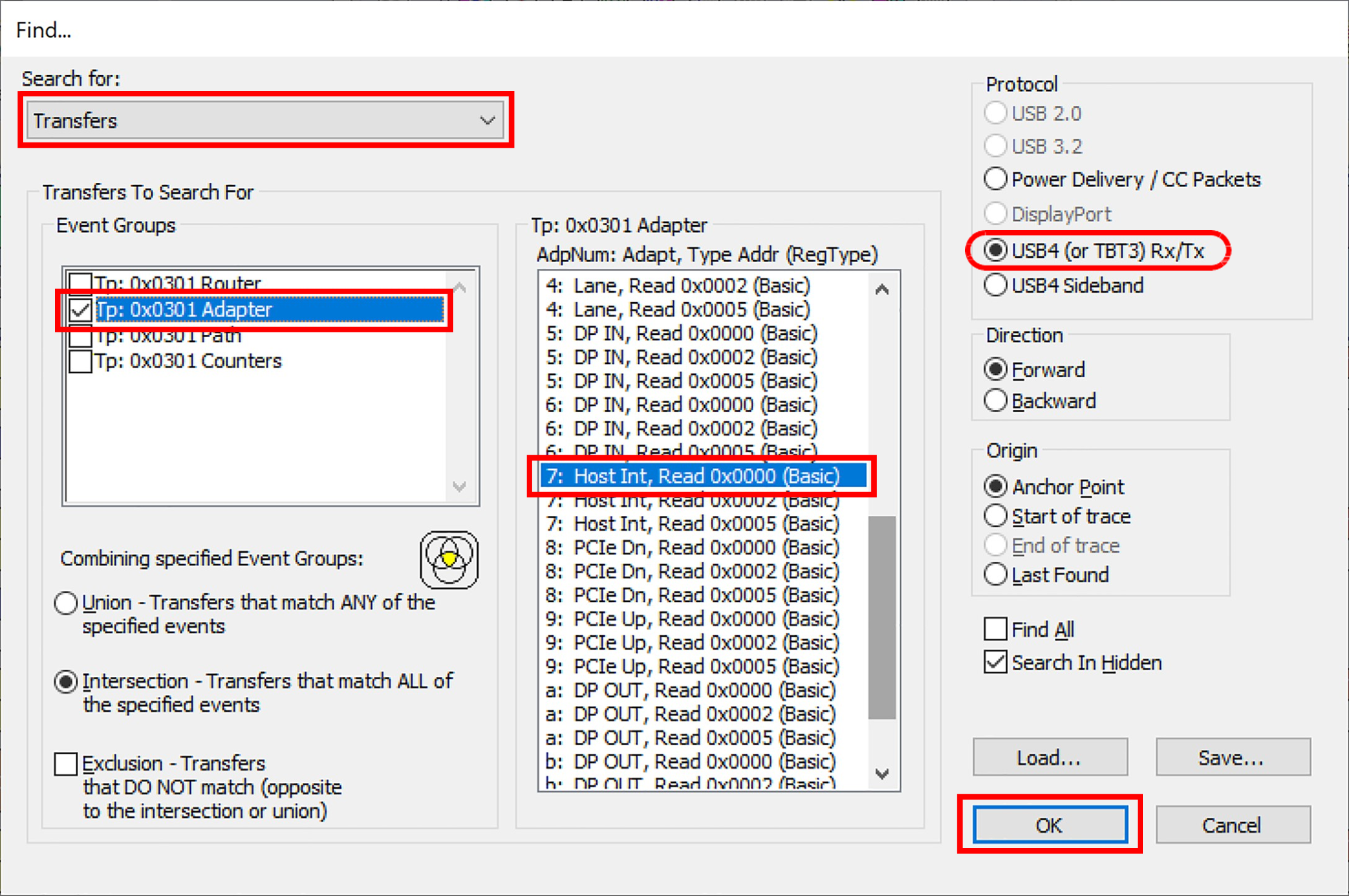
Select the following:
-
Transfers
-
Event Groups > Adapter and Register Type
-
Host Int, Read: 7: Host Int, Read
-
USB4 (or TBT3) Rx/Tx
Click OK.
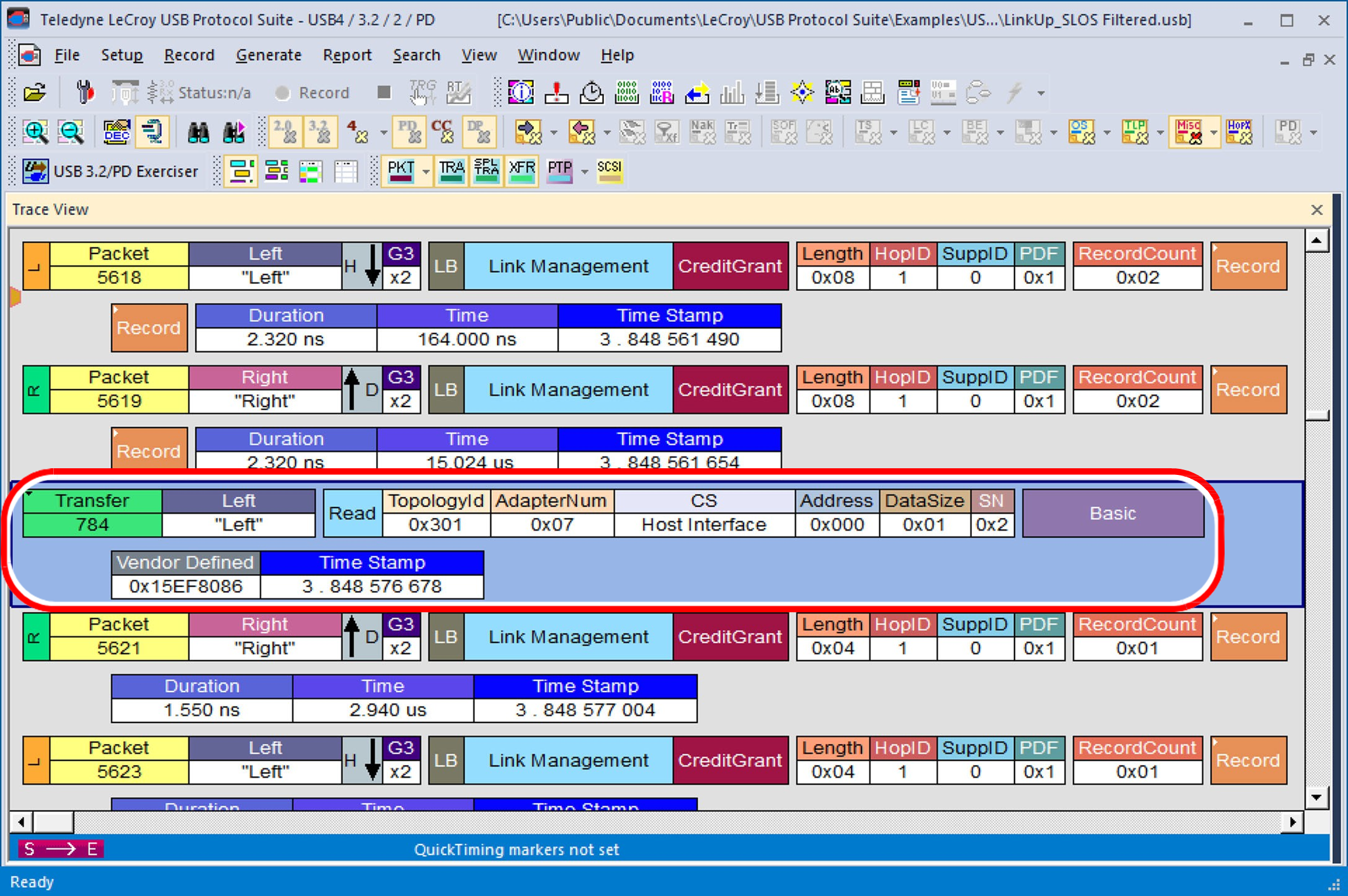
Transfer #784 with READ, TopologyId, AdapterNum, and Configuration Space will be highlighted (shown below).
Find USB4 Operations
Open the Find dialog window and select USB4 Operations.
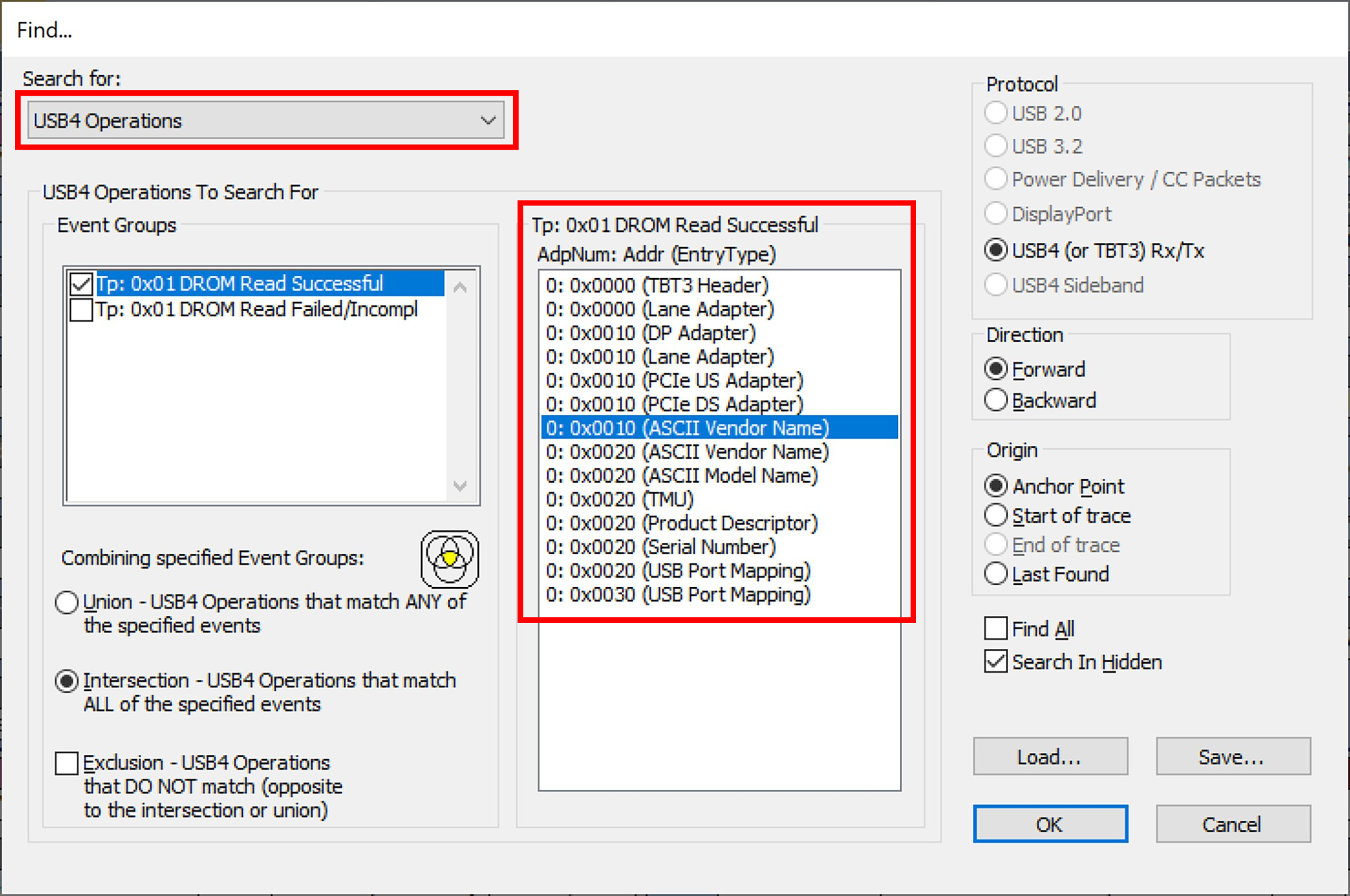
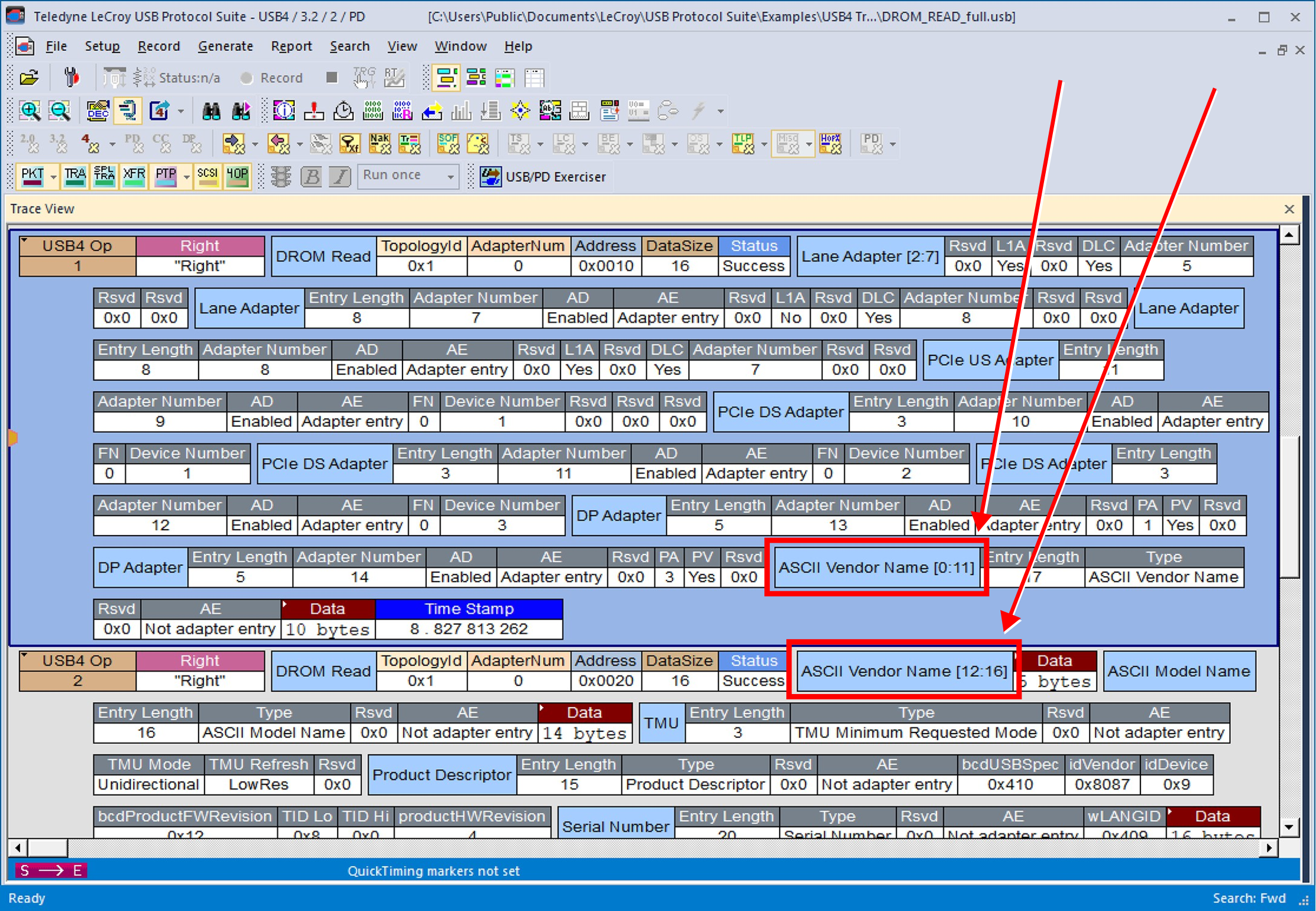
Click OK. The operation with the DROM Read & ASCII Vendor Name is highlighted in the loaded trace, shown below.
Find Next
To apply previous Find parameters to the next search, select Find Next under Search on the Menu Bar, or click 
Search Direction
Toggles the search forward or backwards. The current search direction is indicated in the menu.