Overview
The Voyager analyzer simultaneously records and analyzes the response from the Port Under Test (PUT). The USB Compliance Suite includes a software console that manages the entire link and framework compliance verification process by allowing users to run individual test cases or run the full suite in batch mode operation.
References for Test Specifications
The test specifications can be downloaded from usb.org. The supported versions of the Compliance Specifications can be found in the Read Me file, which accompanies the software distribution.
Exerciser Connection Scheme
The USB Compliance Suite operates on Teledyne LeCroy’s Voyager platforms.
For testing Hubs, two Voyagers of the same models are used: one connected to the Upstream Facing Port (UFP); and one connected to one of the Downward Facing Ports (DFP).
NOTE: Teledyne LeCroy does not support mixing USB Analyzer Products for Hub testing purposes. While it is possible that some of these configurations may work (you are welcome to try), Teledyne LeCroy will not support any problems found when users attempt these configurations, as they are never tested in our Engineering or Validation process. No issues will be fixed related to this usage. The only supported configurations are:
-
M3x – Hub – M3x
-
M310C – Hub – M310C
-
M310P – Hub – M310P
-
M310e – Hub – M310e
Theory of Operation
The USB Compliance Suite application relies on a MFC COM/DCOM1 interface to automatically control the Voyager hardware and software to validate PUT compliance. Each test case in the USB Compliance Suite has three underlying scripts and a recording parameters file.
-
VBScripts: Arm the analyzer, initiate test scripts, and save output trace files.
-
Voyager Exerciser test scripts: Stimulate specific behaviors on the PUT.
-
Voyager Verification scripts: Analyze captured trace files post-process.
-
Custom recording options: Uploaded to the analyzer for each test case.
Individual test cases have separate scripts. Though all the script files are provided in source-code format (see Folder Structure), the file names of script files are “hard-coded” in the software and should not be changed.
To prevent accidental changes to the script structure, the files are write-protected by default. However, you can copy scripts and not protect the copies to modify or adapt scripts.
You can use this verification resource for creating custom test cases.
1 Microsoft Foundation Class Component Object Model/Default Component Object Model
Power Delivery Requirements
The USB Compliance Suite supports all Power Delivery testing.
Beginning with USB Compliance Suite v3.07, all PD Compliance Tests should be run with the special VCONN Pass through cable (USB25CAB-X). For convenience, cable marker messages are now emulated, when necessary, to perform all PD and Type-C tests with this single cable.
For information on how to attach and use the Load Box for Power Delivery Load testing, see Voyager M310e PD 3.1 Source & Sink Compliance Tests in Appendix B.
NOTE: Type-C Devices using captive cables can always be connected directly to the analyzer.
Type-C Requirements
For all Type-C Functional tests, the “pass-through” cable (USB25CAB-X) should be used.
This is necessary so that VCONN and the Type-C termination states on the second CC pin of the PUT can be measured.
Captive cable devices can always be connected directly to the analyzer.
Type-C tests require testing of both plug orientations on the device connector side, so that the Multiplexers and D+/D- Connections can be verified for the PUT Type-C Receptacle.
It is important that running this “flipped” iteration of the tests be done by flipping the Type-C Plug on the PUT end of the cable. If this flipping of the Plug were done at the Voyager Exerciser Connector, the test would operate on the exact same pins as the prior run.
NOTE: For captive cable devices, no “flipped” run is required.
Folder Structure
The USB Compliance Suite application has two folder structures with two separate paths:
-
C:\Program Files (x86)\LeCroy\USBCompliance:
-
Configuration Files
-
Documentation Files
-
Executable
-
-
C:\Users\Public\Documents\LeCroy\USBCompliance:
-
The Scripts folder includes folders for Application shell executable files and libraries required for execution.
-
Settings: Keeps settings files.
-
Traces: Default folder for saving the trace file. You can change the default folder in the Set- tings in the Application Shell.
-
Scripts Sub-Folders
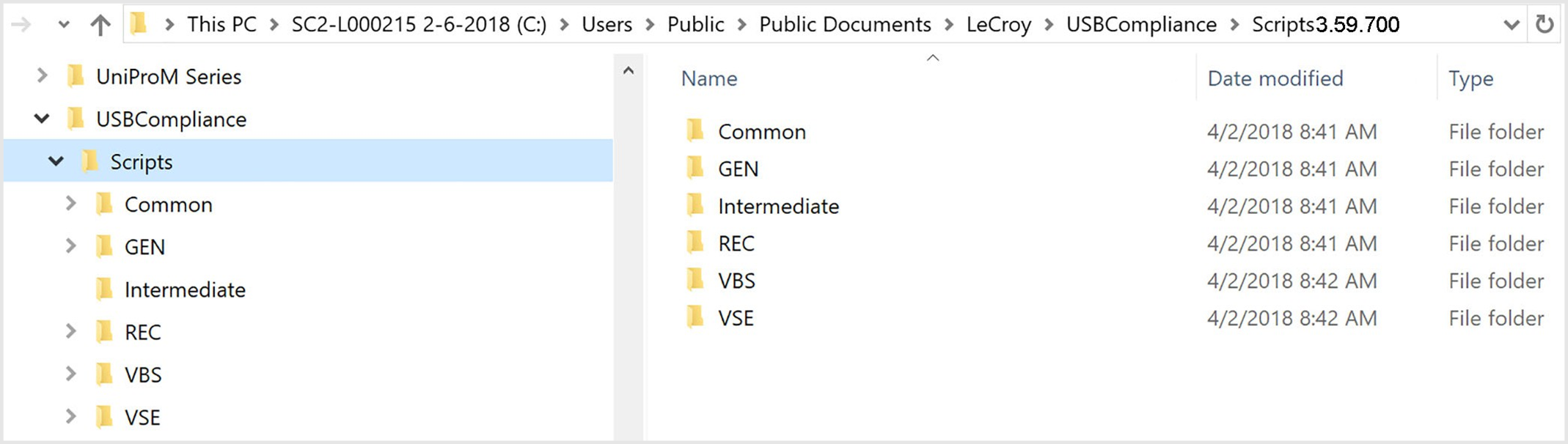
The Scripts folder sub-folders include Exerciser, verification, and VBS scripts, plus recording options that enable the automated operation of the test suite.
REC Folder
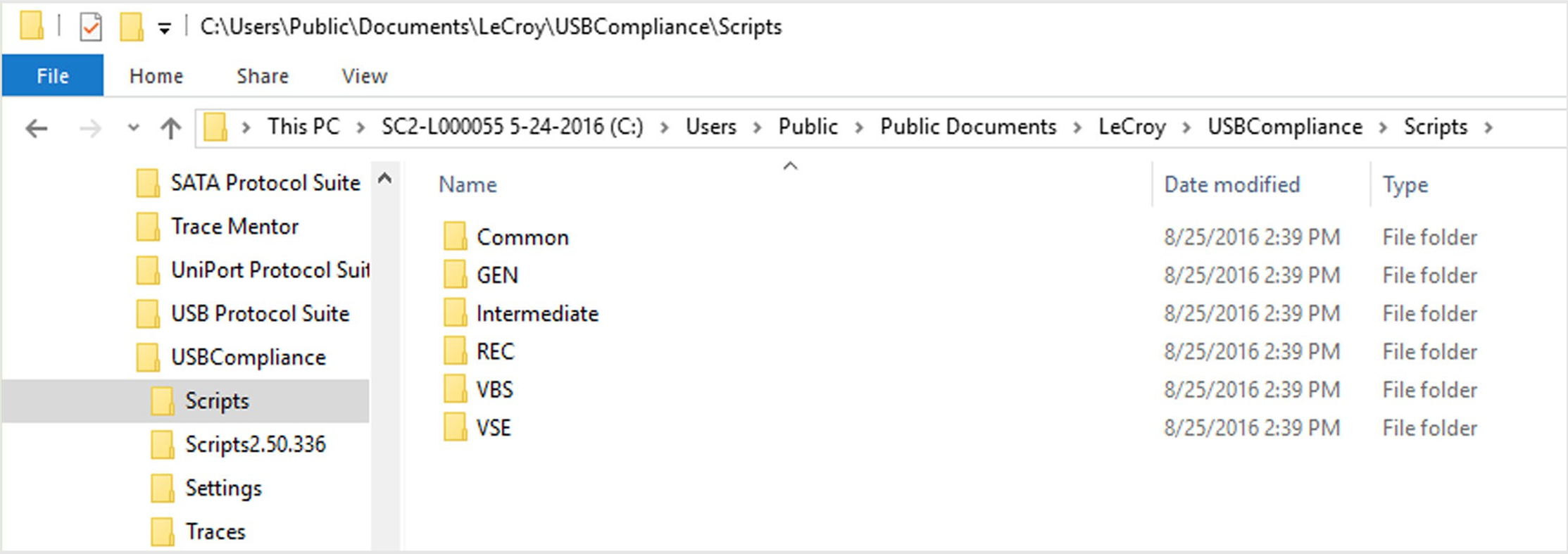
The REC folder contains the recording options for the tests.
GEN Folder
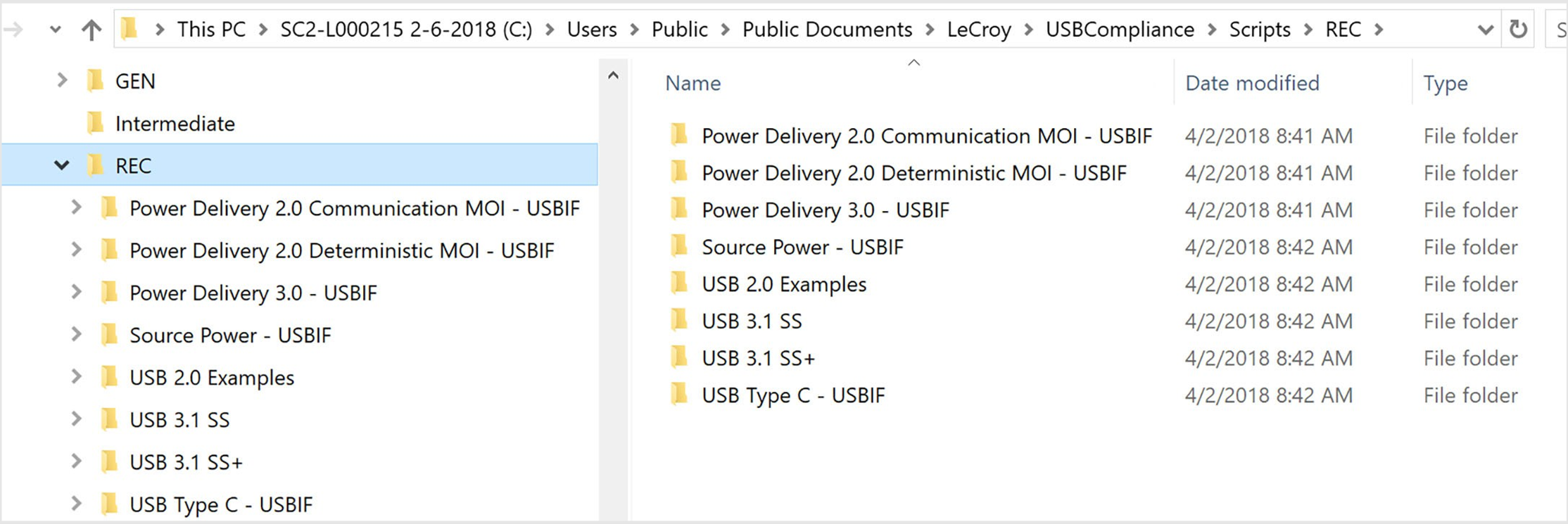
The GEN folder contains the generation options for the tests.
ScriptsX.YY.NNN
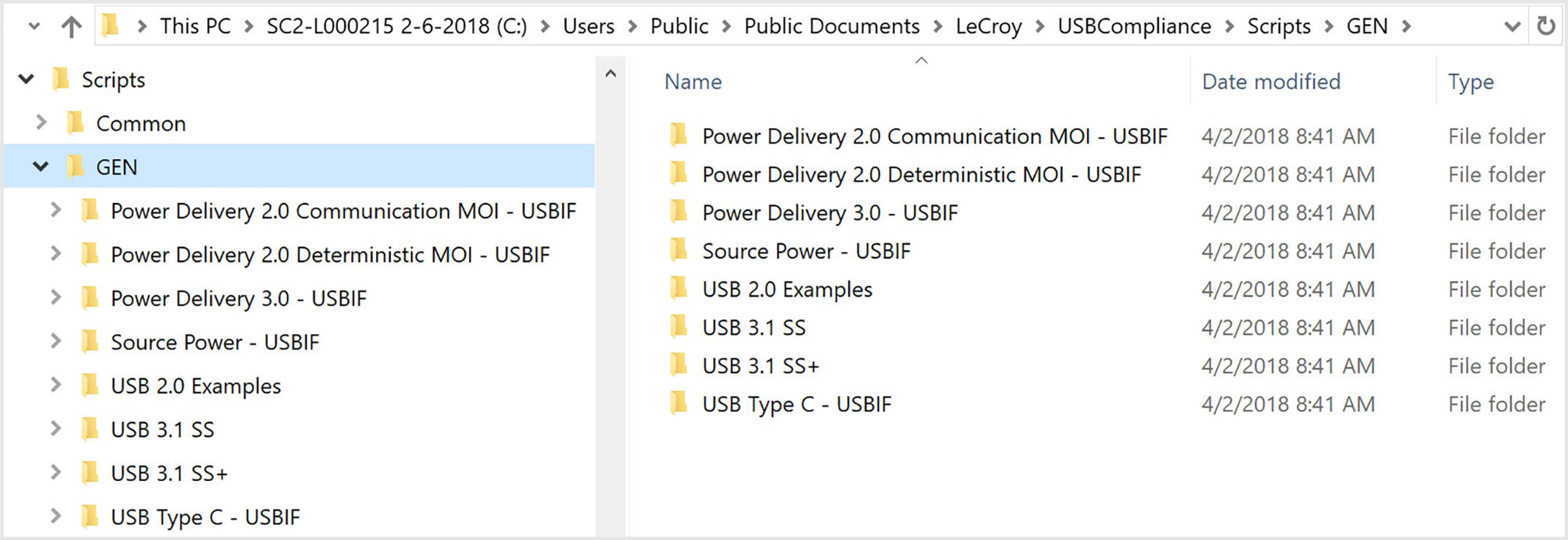
If you install a new version of the USB Compliance Suite software and previously generated scripts exist, you will be given the option to retain those scripts in a folder with the software version and build number. If you wish to retain customized scripts, use this option.
The image below shows a folder of previously generated scripts using USB Compliance SW version 3.59, build 700.