
Application Settings allows you to customize certain test behaviors and configure the setup. To access, click the Settings ⚙️ button in the toolbar below the main menu.
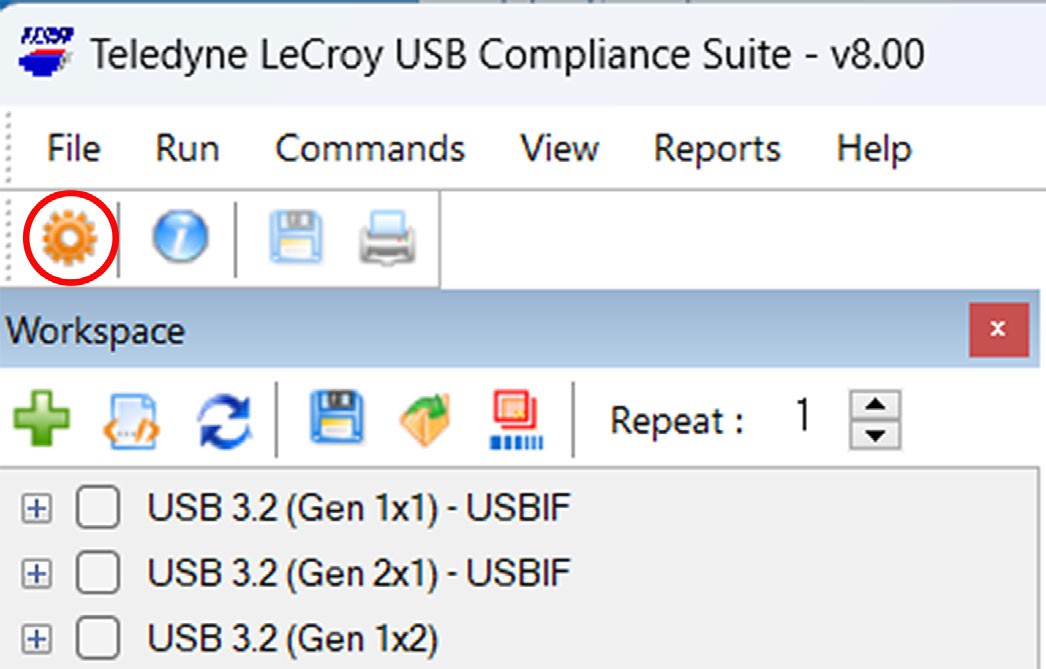
Application Settings comprises the following three tabs:
General Tab Settings
The General tab provides access to configurable options. Although the default settings are preferred for most devices, you can override recording parameters that affect the Voyager hardware operation can provide an easy way to troubleshoot PUT connections or configuration issues.
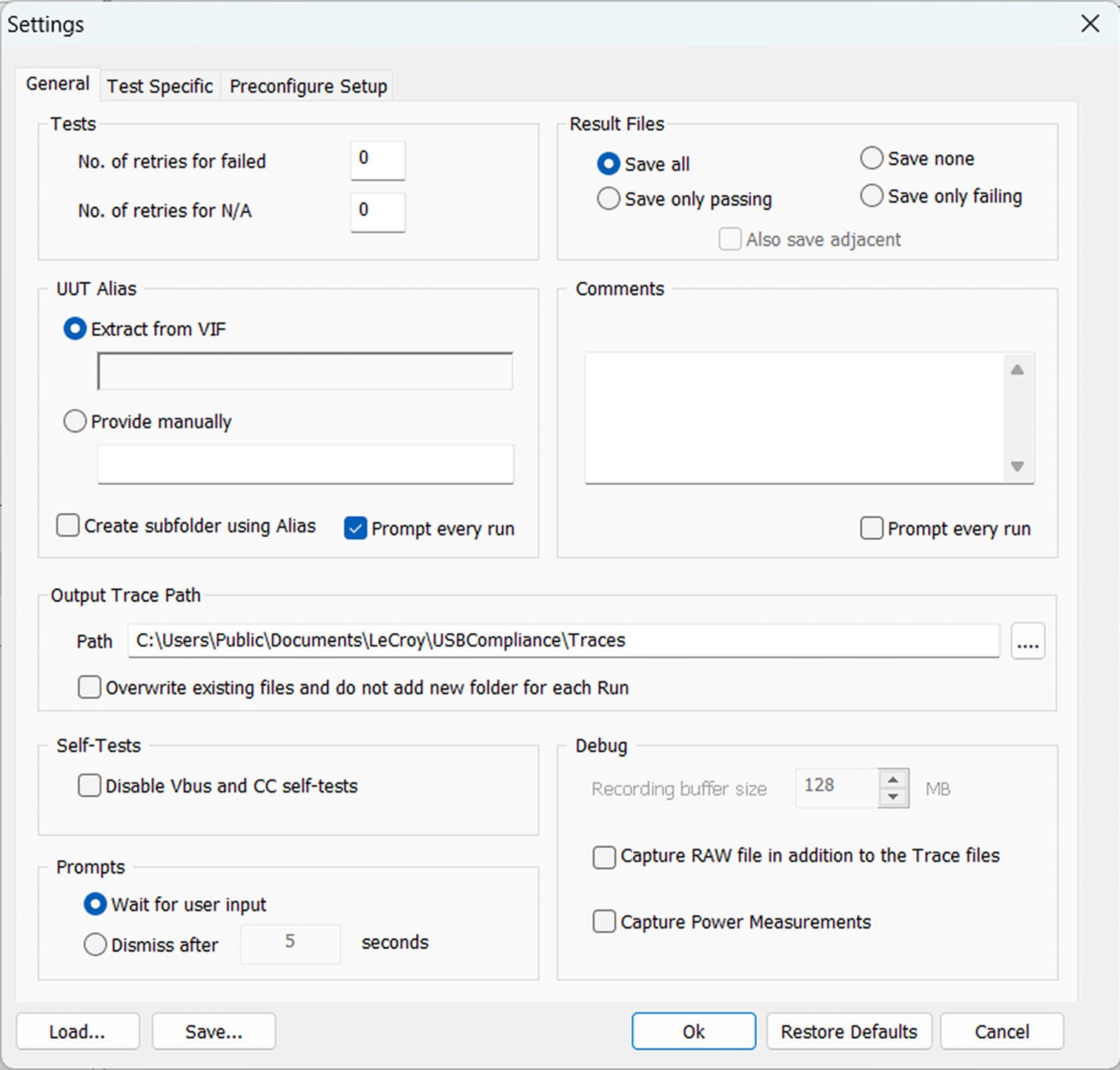
General Settings Tab Options
|
Setting |
Description |
|
Tests |
|
|
No. of retries for failed Test(s) |
Specify the number of entries for a failed test. |
|
No. of retries for N/A Test(s) |
Specify whether failed or incomplete (NA) tests should be retried, including the number of retry attempts. |
|
Result File(s) |
|
|
Save all Save only Passed Save only Failed Don’t Save |
Choose whether to save All trace files, only Passed trace files, only Failed trace files, or to not save any trace files output during test execution. |
|
UUT Alias |
|
|
Extract from VIF |
Generates an Alias from the Vendor Information File. |
|
Provide Manually |
Manually enter an Alias. |
|
Create subfolder using Alias |
Appends a subfolder with the Alias name to the output trace path. |
|
Prompt every run |
See a prompt to set the Alias at the start of every test run. |
|
Comments |
|
|
Prompt every run |
Receive a prompt to add comments at the start of every test run. |
|
Output Trace Path |
|
|
Path |
Specify the directory in which to save trace files. |
|
Overwrite existing files and do not add new folder for each Run |
If selected, the application saves the trace files in the same folder by overwriting previously captured files. |
|
Self-Tests |
|
|
Disable VBUS and CC self-tests |
By default, the USB Compliance Suite performs a series of internal checks on VBUS generation and measurement circuitry. Select to disable this function. |
|
Debug |
|
|
Recording buffer size |
Set the recording buffer size to be used when one of the Debug options is enabled. |
|
Capture RAW file in addition to the Trace files |
Select to retain raw capture data during uploading. You may be asked to enable this option when requesting support from Teledyne LeCroy. |
|
Capture Power Measurements |
Select this to capture and save Power Measurements. |
|
Prompts |
|
|
Wait for user input |
Requires user input to dismiss prompts. |
|
Dismiss after N seconds |
Automatically dismisses prompts after a given number of seconds, to enable set-and-forget test runs. |
Test-Specific Settings
These settings allow you to customize specific test cases.
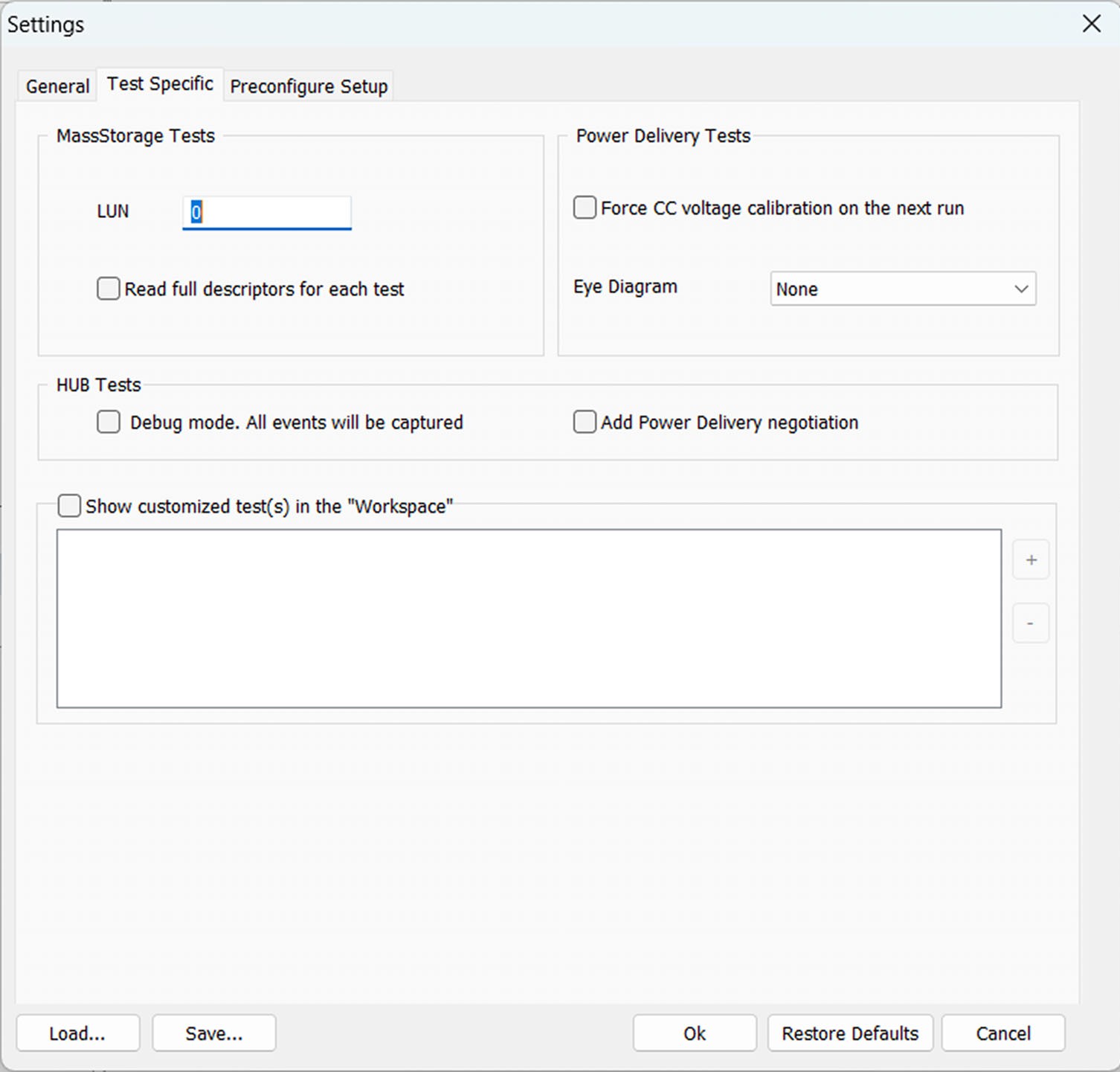
Test Specific Settings Tab Options
|
Setting |
Description |
|
MassStorage Tests |
|
|
LUN |
Specify the LUN ID number. |
|
Read full descriptors for each test |
Select this option to enable this feature. |
|
Power Delivery Tests |
|
|
Force CC voltage calibration on the next run |
By default, CC output voltage calibration is retained on a per-unit basis. Select this option to force recalibration instead. |
|
Eye Diagram |
Applies a filter to the input signal during the creation of Eye Diagrams. Results obtained when this setting is enabled are considered unofficial. |
|
HUB Tests |
|
|
Debug mode. All events will be captured
|
This is used to aid Teledyne LeCroy Engineering if a problem occurs during compliance testing. You should use it only when instructed to by Teledyne LeCroy Support engineers. Note that this setting increases compliance testing run time. |
|
Add Power Delivery negotiation |
When enabled, the LVSh and LVSd will attempt to establish explicit Power Delivery contracts with their Port Partners. |
|
Show customized test(s) in the “Workspace” |
You can add any path to show user-customized test cases. When you set a path, *.vbs files are automatically discovered in all folders and their sub- folders, then are added to the workspace tree as customized tests. |
Preconfigure Setup Settings
By default, the connected test equipment is automatically detected. With this setting, you can specify which unit to use when there are multiple connections.
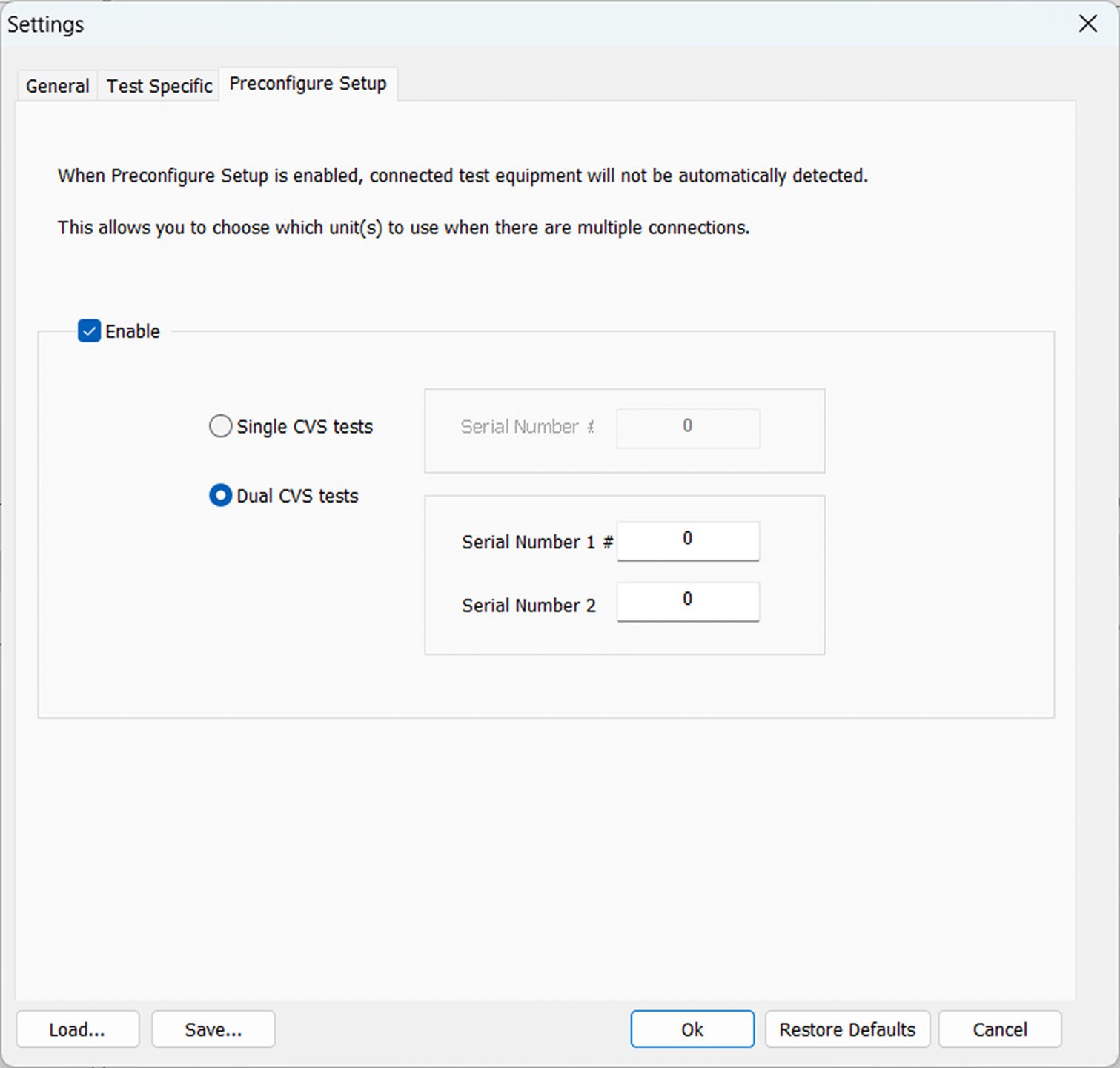
Preconfigure Setup Settings Tab Options
|
Setting |
Description |
|
Enable |
|
|
Single CVS tests Serial Number: # |
Select this option when running tests that use a single CVS. |
|
Dual CVS tests Serial Number: 1 # Serial Number: 2 # |
Select this option when running tests that use two CVSs. |