
Test Profiles
Custom test environments can now be saved as “Profiles”. Profiles include everything needed to initiate testing, including the Settings, a path to the current VIF, and a list of active tests. They provide a quick way to create test scenarios for each of your products and can be loaded with one-click to quickly initiate testing.
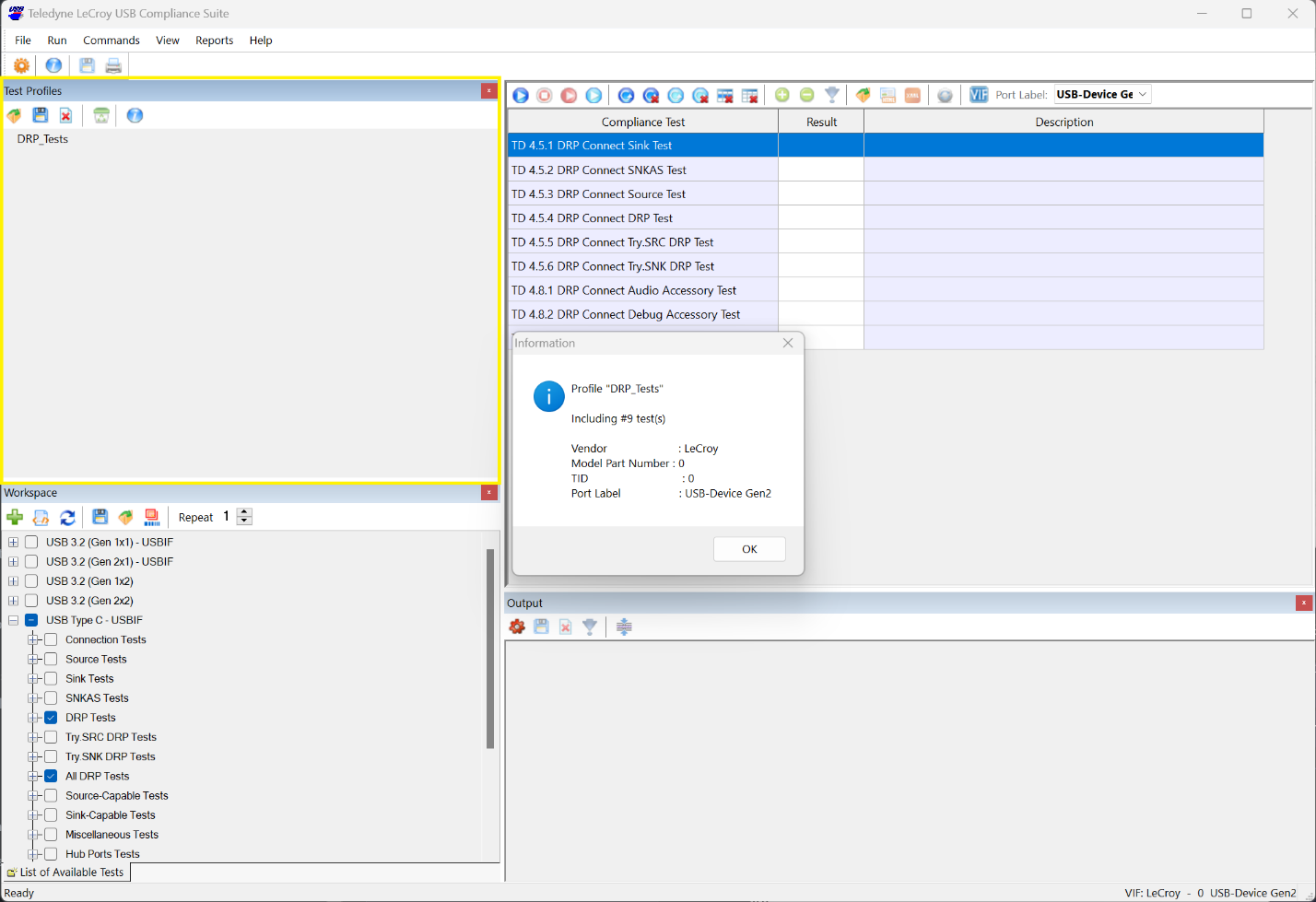
Simply select a profile from the list and click the “Load Profile”. This will import the VIF, Settings, and Test List, overwriting these items from any existing test sessions.
To create a new profile, start by setting up a test environment. Load in a VIF, select and add in the desired tests from the Workspace, and configure the Settings as needed. Click the Save Profile icon in the Test Profiles toolbar and provide a name for the profile. The test profile will be saved as a folder with two .XML files. One is a list of tests, and the other is the Settings. These are plain text files that can be edited outside of the Compliance Suite GUI.
Test Profiles are stored in: C:\Users\Public\Documents\LeCroy\USBCompliance\Profiles\
Each folder in that directory represents a Profile as displayed in the Test Profiles window.
New Settings
Some tests require the user to select a prompt to continue. We’ve added an option in the Compliance Suite Settings that will automatically dismiss these prompts for set-and-forget test runs:
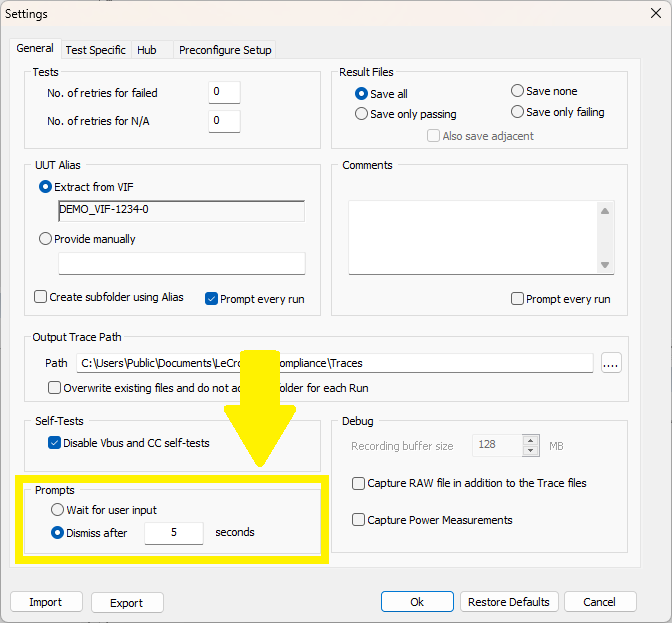
The selected option will be written into the Settings .xml file when exported individually or as part of a complete Test Profile.
Command Line Interface
Our new command line interface allows users to initiate testing without clicking through the GUI.
We've provided a batch file in the Program Files folder to get you started:
C:\Program Files (x86)\LeCroy\USBCompliance\USBCompliance.bat
To initiate a test run, navigate to the path above in a Command Prompt (or PowerShell), then execute “USBCompliance.bat” with the appropriate flags.
There are currently four flags available:
/h - Help
/s - The path of a Settings .xml file
/t - The path of a test list .wsp file
/p - The name of a Test Profile folder in the “Profiles” directory
Note: A Test Profile already includes a test list and settings file.
“/p” does not require using “/s” or “/t”.
Examples:
.\USBCompliance.bat /s "C:\ABC_Settings.xml" /t "C:\DRP_Tests.wsp"
.\USBCompliance.bat /p "Device ABC as DRP"

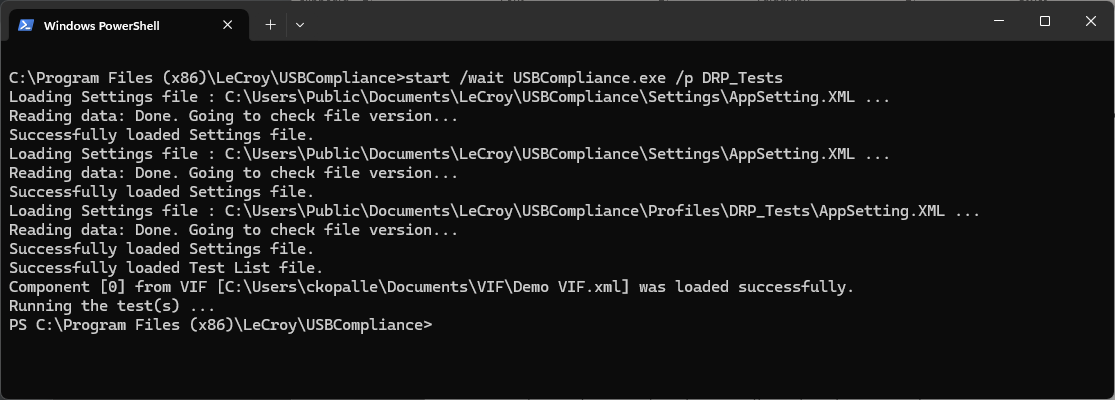
Running the command will launch USB Compliance Suite with the selected parameters, immediately start testing, then terminate the instance upon completion. Results will be saved in the Output Trace Path specified in the settings.
Known Issues
TD 4.10.6 – Billboard Verification on Hubs [USBCOMP-19857]
This check is not currently performed properly on PUTs where Type_C_Port_On_Hub is YES. This can result in an error message indicating failure to expose the Billboard descriptor after tAMETimeout. The trace files should be reviewed manually by the test operator to determine if valid behavior occurred.