
Perform the following setup to use the library and create your own client applications.
Note: In order for your application to connect to analyzers over Ethernet, the application must run a Windows message loop. For instructions, see the following MSDN article:
http://msdn.microsoft.com/en-us/library/windows/desktop/ms644928(v=vs.85).aspx
Install Net Protocol Suite
Download and install the Teledyne LeCroy Net Protocol Suite from https://teledynelecroy.com/sw/netprotocolsuite
Open Visual Studio
-
Open Microsoft Visual Studio.
-
Create or open a project.
-
Right-click Project. The Project menu opens.
-
Select Properties. Project Property Pages opens.
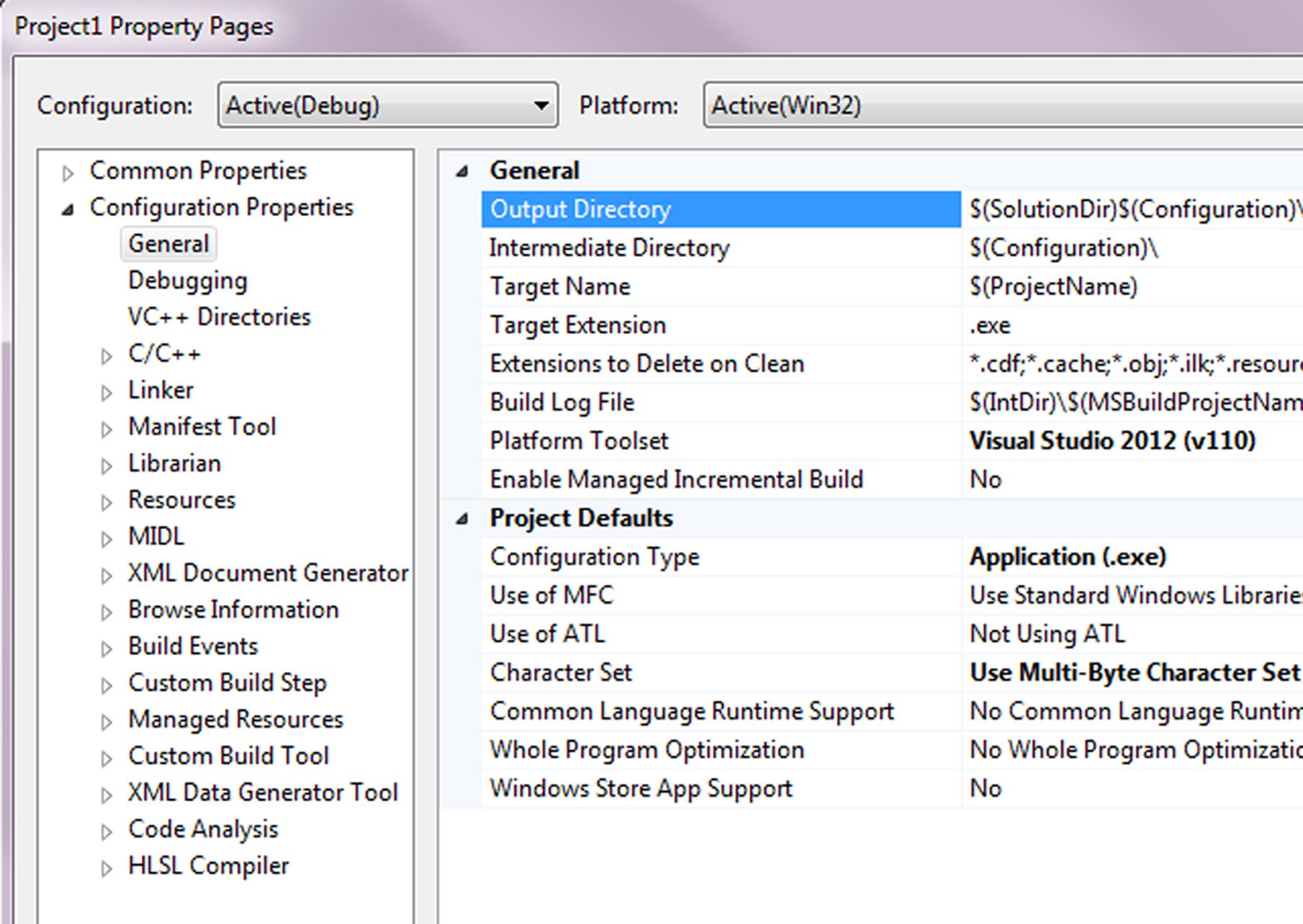
Select the Output Directory
-
In the drop-down menu to the right, select Browse.
-
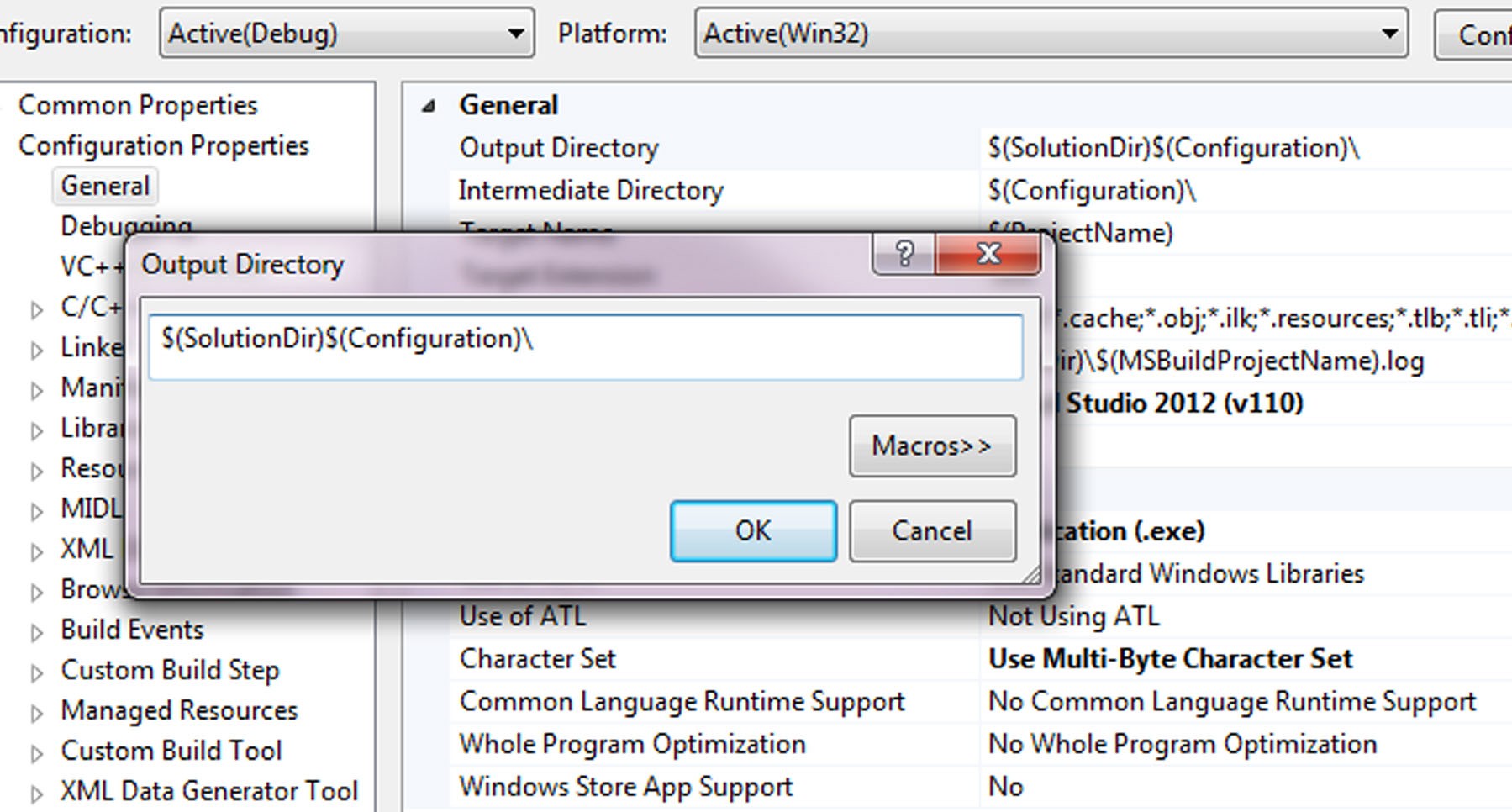
Find the directory C:\Users\Public\Documents\LeCroy\Net Protocol Suite\API\SDK\bin, or select Edit from the drop-down menu to the right. The Output Directory window opens.
-
Set the path to the output directory. Highlight this text and replace with
C:\Users\Public\Documents\LeCroy\Net Protocol Suite\API\SDK\bin
For Windows XP, the directory is: C:\Program Files\LeCroy\Net Protocol Suite\API\SDK\bin
Select Input File
-
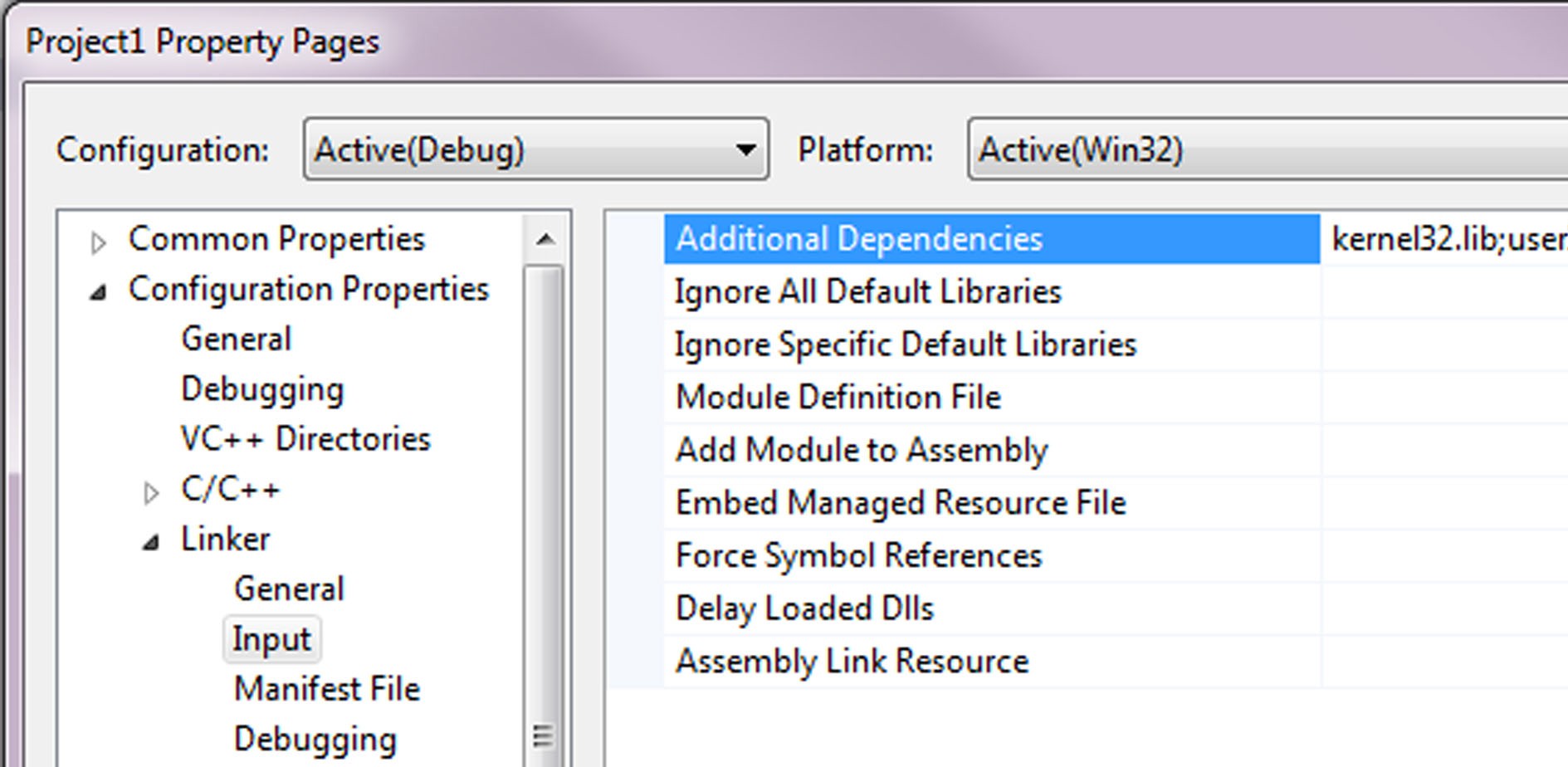
Under Configuration Properties, select Linker > Input
-
Select Additional Dependencies.
-
Copy this into the field to the right: C:\Users\Public\Documents\LeCroy\Net Protocol Suite\API\SDK\Lib\TLNetAPI.lib
For Windows XP, use this instead: C:\Program Files\LeCroy\Net Protocol Suite\API\SDK\Lib\TLNetAPI.lib
Select directory for include files
-
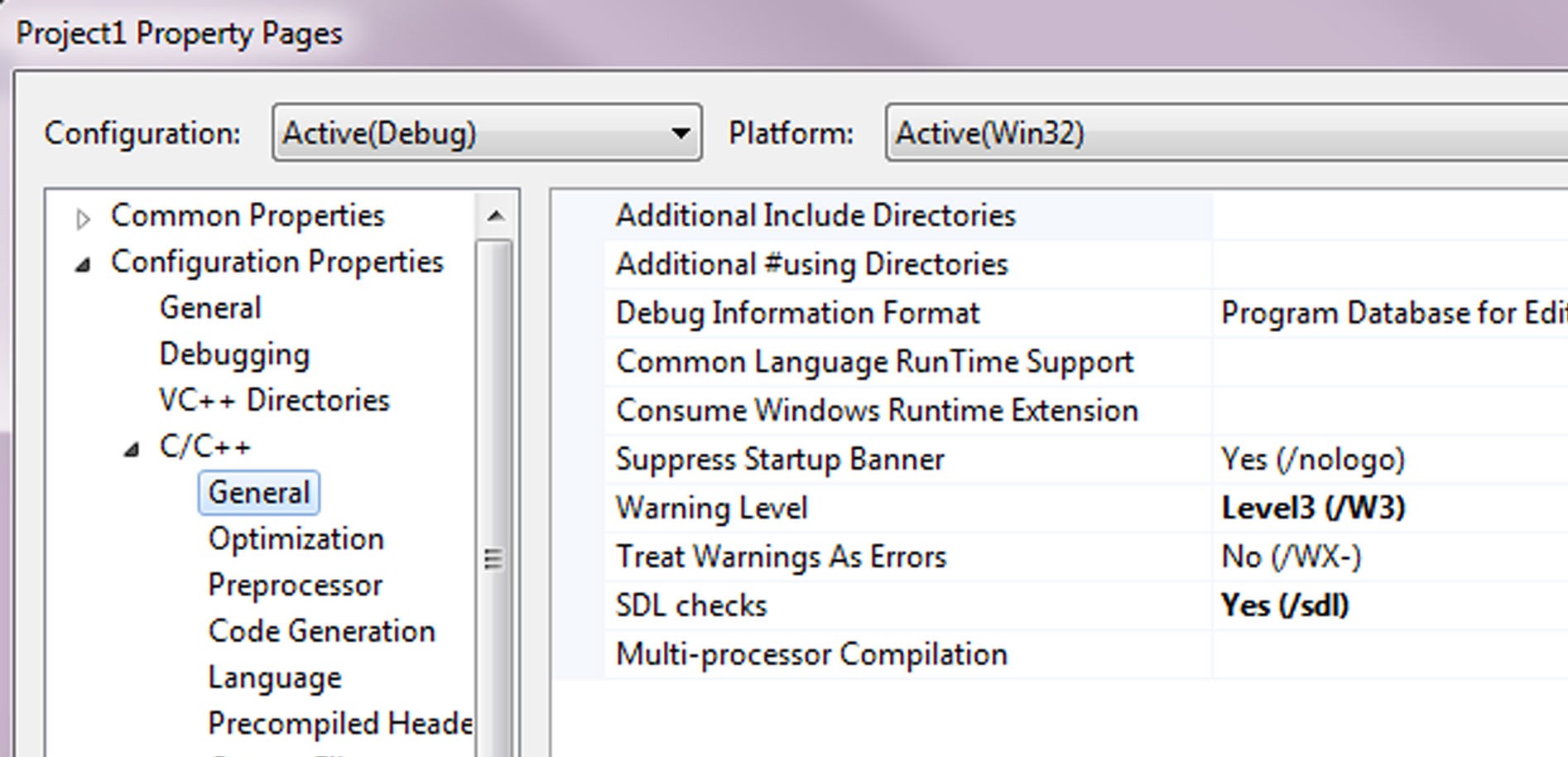
Go to Configuration Properties > C/C++ > General.
-
Go to Additional Include Directories.
-
Enter the following directory: C:\Users\Public\Documents\LeCroy\Net Protocol Suite\API\SDK\Include
-
On the Property Pages window, select OK to accept these changes. The contents of the include folder are listed below:
TLNetAPI.h: Initializes and releases the API, gets the final internal error code and gets a description of any internal error code functions.
APIProject.h: Declares the project functions.
APIAnalyzerSettings.h: Declares the project’s analyzer setting functions.
APIEventHandlers.h: Declares any callback functions that report the status of recording and jammer processes, and reports any process errors or progress.
APITrace.h: Declares all functions. APITraceIterator.h: Defines trace iterating.
APITracePacket.h: Defines packet navigating.
Creating and Using Objects
-
Create a Trace object and open the trace as follows:
EAPIErrorCode error_code= API_OK;
APITrace *trace= NULL;
error_code= APITrace_create(trace );
error_code= APITrace_ Open( trace , trace_file_name.GetBuffer(0) );
-
Create a Trace Iterator and pass the already created Trace Object during its construction.
APITraceIterator *trace_itr = NULL;
error_code= APITraceIterator_create( trace , trace_itr );
-
That’s it! You are now ready to use the different methods of trace and iterator.
error_code= APITraceIterator_ToFront( trace_itr );
bool has_next= false;
error_code= APITraceIterator_HasNext( trace_itr , has_next );
if(has_next)
{
APITracePacket *packet= NULL;
error_code= APITracePacket_create( packet );
error_code= APITraceIterator_GetNext( trace_itr , packet );
EDataType data_type;
error_code= APITracePacket_getType( packet , data_type );
.
.
.
-
Don’t forget to destroy all created objects.
.
.
.
error_code= APITracePacket_destroy( packet );
}
error_code= APITraceIterator_destroy( trace_itr );
error_code= APITrace_destroy( api_trace );