
Our aim is to acquaint you with the most essential elements of DecoderScript and leave you with sufficient expertise so that you can write decoders of your own.
We will begin with a short basic overview of DecoderScript: Wireless Protocol Suite turns this…
Stream of bytes
…into this:
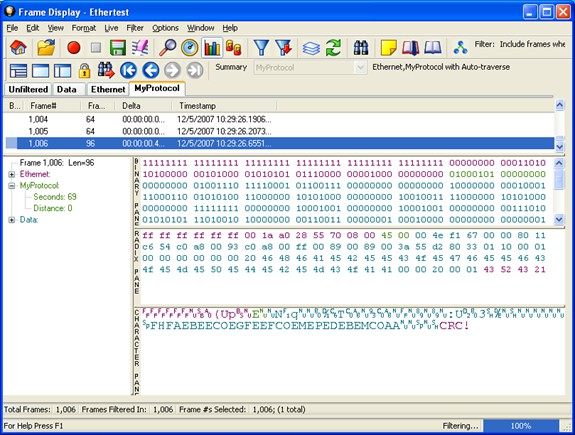
To do this, the Wireless Protocol Suite software uses a set of instructions called a decoder. A decoder is written in a language called DecoderScript
Here's the decoder, written in DecoderScript, that creates the Frame Display screen shown above:
// Copyright Monday, May 8, 2023 Frontline Test Equipment, Inc. All rights reserved. "MyProtocol" 0x7f00fff7
DECODE
FIELD secs (Fixed 1 Byte) (Decimal) "Seconds"
FIELD distance (Fixed 1 Byte) (Decimal) "Distance"
END_MAIN_PATH
This is a very simple example which illustrates some very fundamental capabilities of DecoderScript.
The FIELD statements define the contents of the Frame Display. The first statement breaks down like this:
Table 3.1 - Contents of Frame Display
|
Item |
Description |
|
Field |
Keyword that identifies the beginning of a field statement |
|
secs |
Identifier of field definition statement. |
|
(Fixed 1) |
Fixed is a size method and defines the size of the field. |
|
(Decimal) |
Formats the output to be displayed in decimal format. |
|
"Seconds" |
Display the value in the detail pane (lower-left corner of Frame Display) with the label "Seconds" |
The decoder starts with a name ("MyProtocol" in this name that appears on the tab in Frame Display) and a value called a decoder ID. Each decoder must have a unique decoder ID.
To see the decoder above in action, do the following:
-
Type the entire decoder into a file called mp.dec.
-
Put file mp.dec into directory C:\Users\Public\Documents\Teledyne LeCroy Wireless\My Decoders.
-
Run Wireless Protocol Suite software and do either a live capture or open a capture file.
-
Select the Options menu and do the following:
-
Select the Decoders menu.
-
Select Protocol Stack…
-
Select Build Your Own
-
Press the Next button twice
-
Remove all entries from the Protocol Decode Stack list by selecting them and pressing the left arrow button.
-
Add the contents of mp.dec by selecting MyProtocol in the box on the left and pressing the right arrow button.
-
Press the Finish button.
-
In the Frame Display you will now see the packets decoded by your mp.dec decoder. It will appear on MyProtocol tab with the data decoded.
-
To further build on our short version of decoderscript writing, see the following sections for more detail.