
This section describes how to initiate, run, manage, and save tests.
Initiate a Test Using the GUI
To initiate a test, do the following:
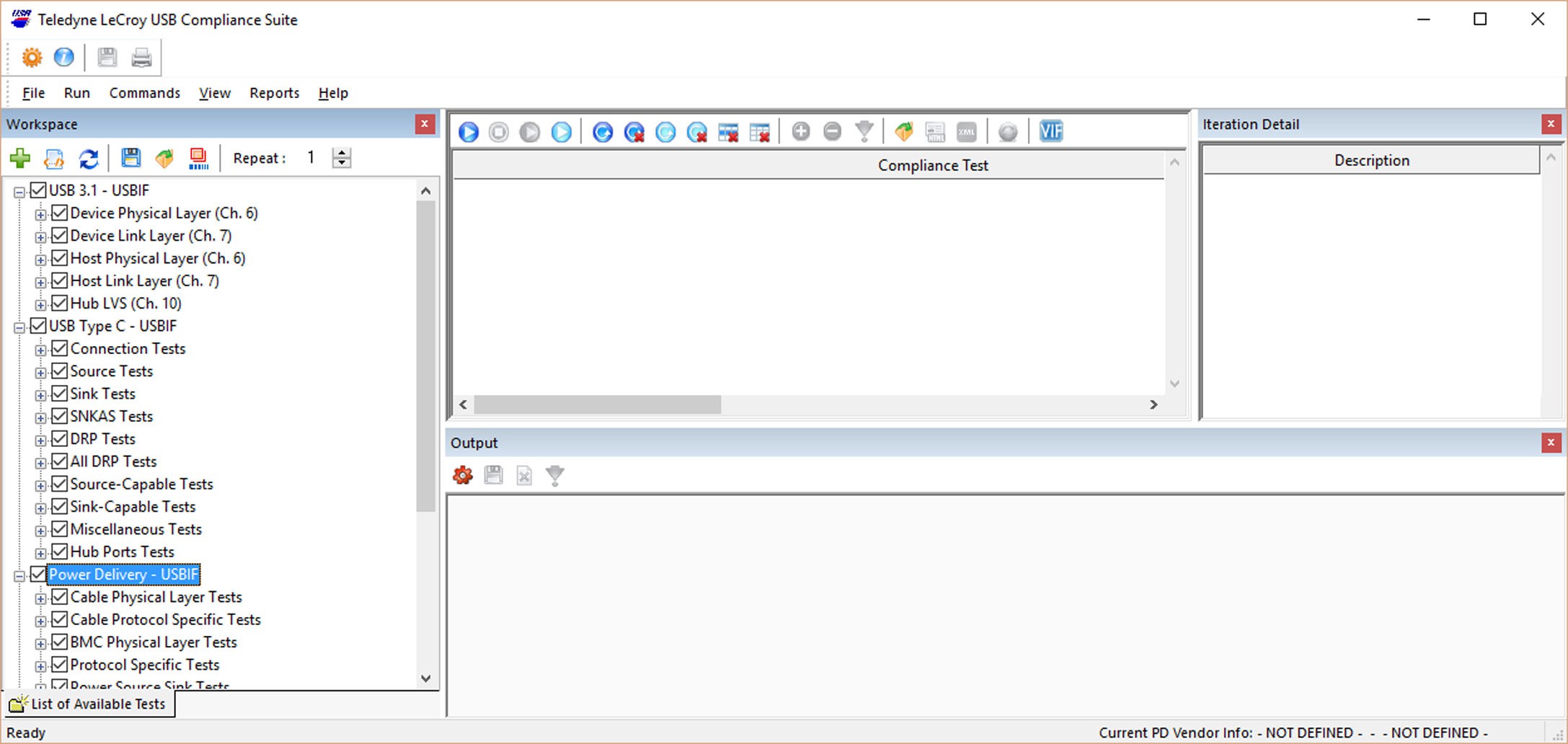
If you have not already done so, launch the USB Compliance Suite software. The application Main window appears.
-
From the list in the Workspace pane, select the test(s) you wish to run.
-
Click
-
Do one of the following:
Click ▶️ to run all of the tests in the Compliance Test area.
OR
Use Ctrl + click to select specific tests, then click ▶️ to run the selected tests.
Initiate a Test Using the Command Line Interface
You can also initiate tests without using the GUI via the command line.
-
Open the Command Prompt or Power Shell and navigate to C:\Program Files (x86)\LeCroy\USBCompliance\USBCompliance.bat
-
Execute "USBCompliance.bat" with the appropriate flags. There are currently five flags available:
/h - Help
/s - The path of a Settings .xml file
/t - The path of a test list .wsp file
/p - The name of a Test Profile folder in the "Profiles" directory
/v - The path of a VIF .xml file
NOTE: A Test Profile already includes a test list and settings file, so running "/p" does not require declaring "/s" or "/t".
NOTE: Every path or name must be in quotation marks.
Example Commands
.\USBCompliance.bat /s "C:\ABC_Settings.xml" /t "C:\DRP_Tests.wsp"
.\USBCompliance.bat /p "Device ABC as DRP"
Running a test this way launches the USB Compliance Suite with the selected parameters, immediately starts testing, then terminates the instance upon completion. Results are saved in the Output Trace Path specified in the settings.
View a Selected Test Script
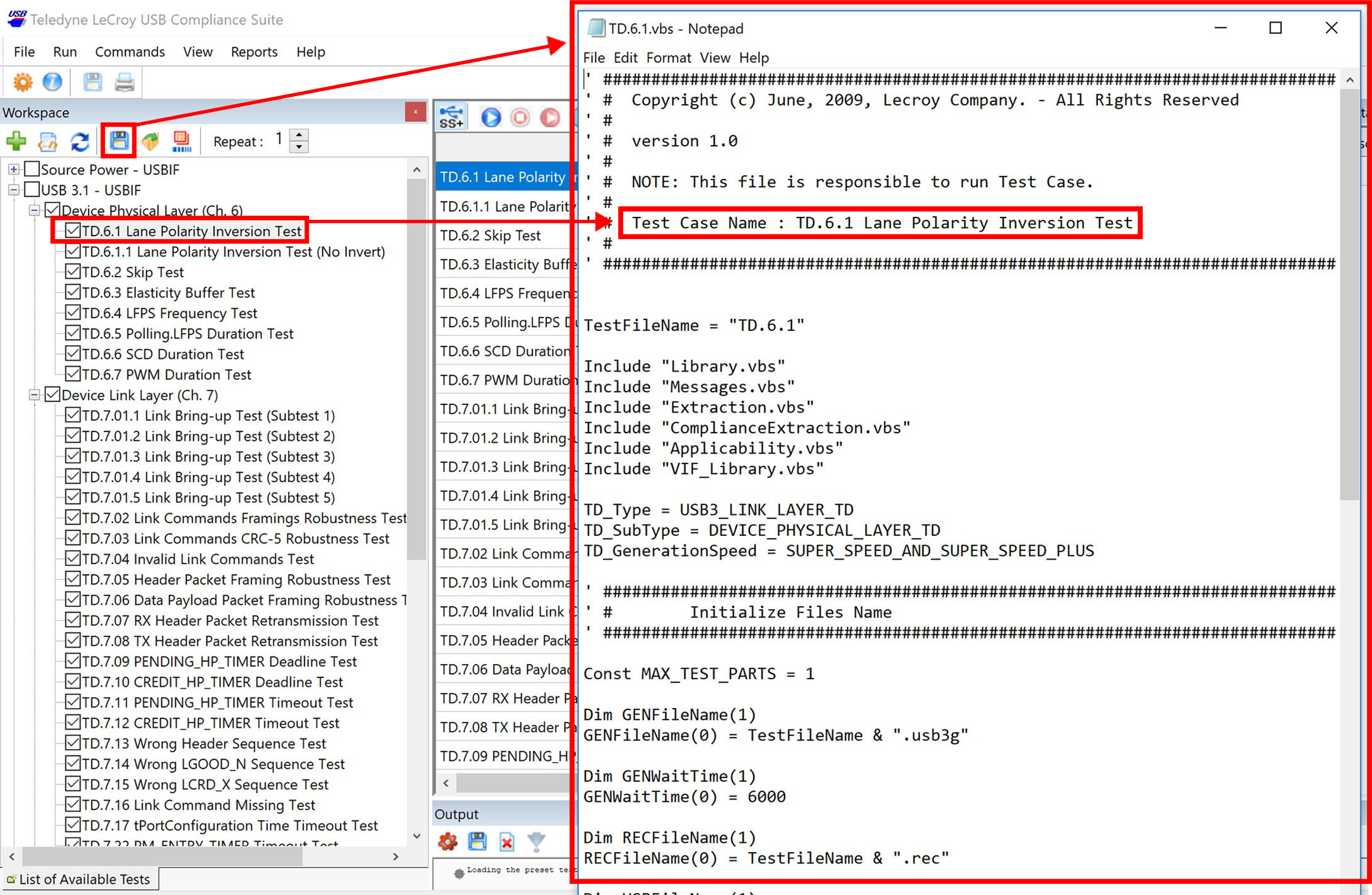
Each individual test case is controlled by a VB script that automates operation of the Voyager hardware and software. To open a test script, double-click the test for the VBScript you wish to view. A Notepad window opens containing the VBScript.
Save a Workspace
With this feature, you can choose a set of tests and store then for use at a later date.
-
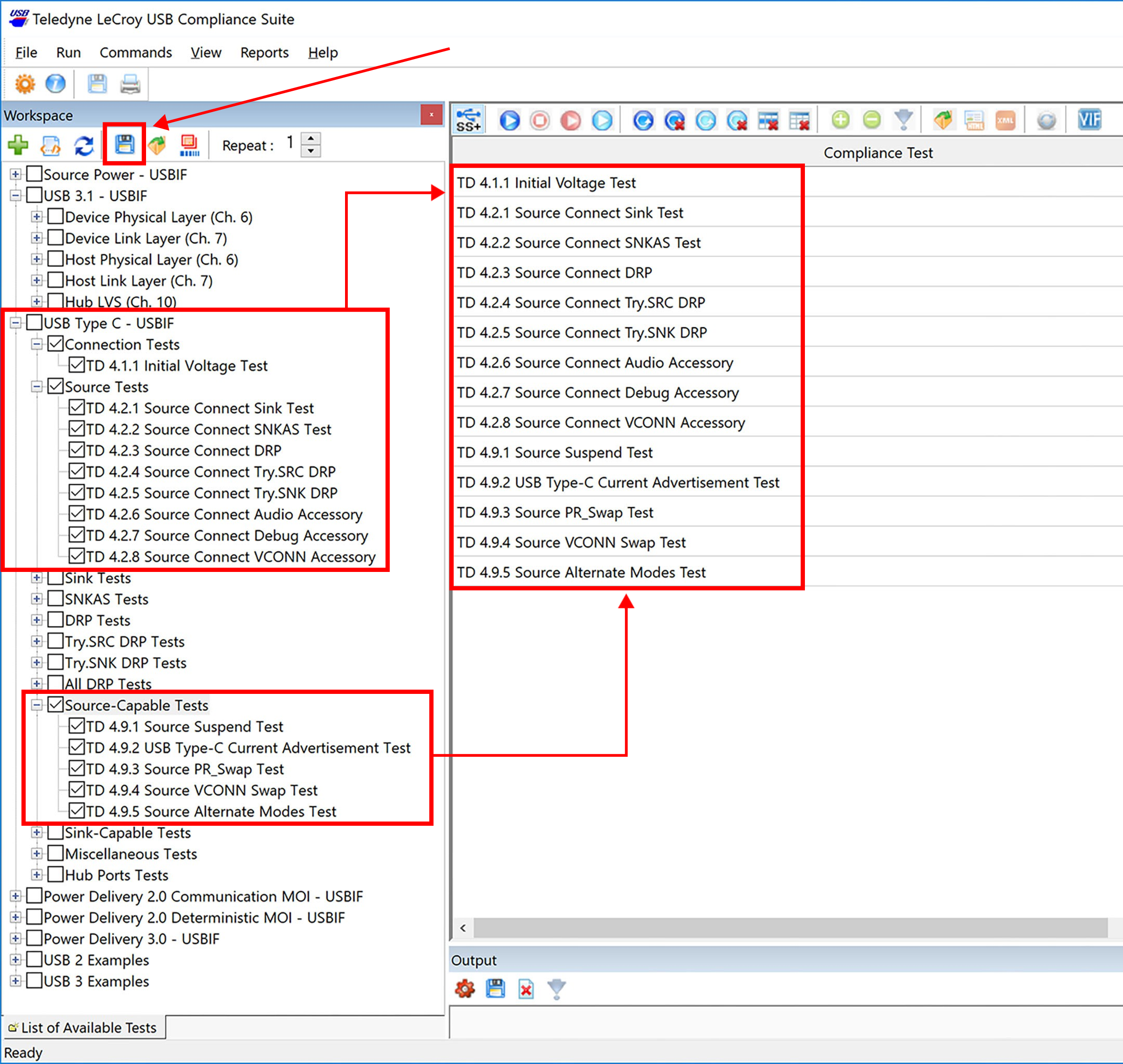
Select a set of tests you wish to save.
-
Click the Save 💾 button. Windows File Explorer opens.
Open a Custom Workspace
-
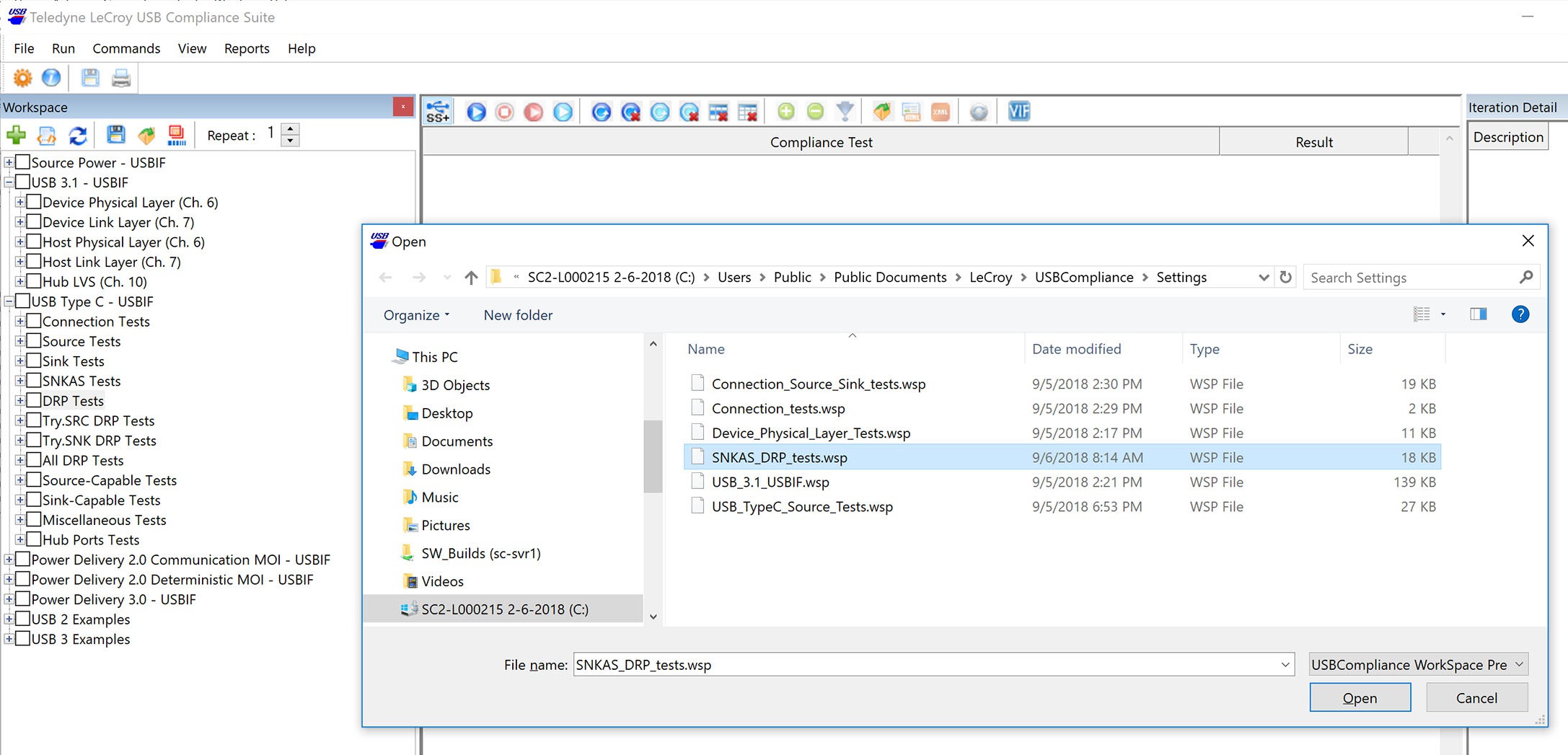
Click the 📂 button.
-
Select the Workspace you want to use and click Open.
Save a Test Profile
Saved Test Profiles allow you to quickly initiate tests. To create a new Test Profile:
-
Load a VIF.
-
Add the tests you want to run from the Workspace.
-
Configure any needed Settings.
-
Click Save Profile in the Test Profiles toolbar and name your profile.
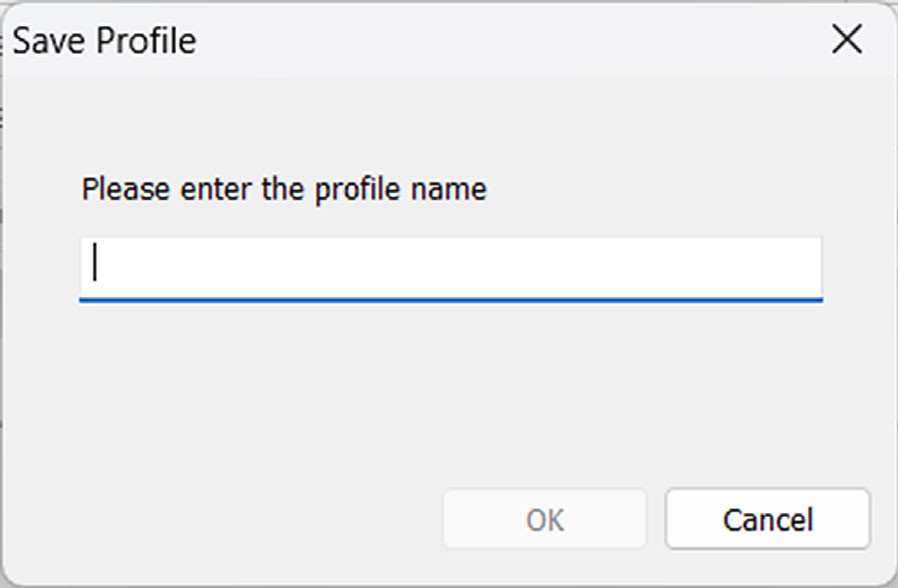
The new profile saves as a folder containing two XML files. One is the list of tests, and the other is the Settings you configured. These files are plain text and can be edited outside of the USB Compliance Suite interface.
Test Profiles are stored in the C:\Users\Public\Documents\LeCroy\USBCompliance\Profiles\ folder. The folders in that directory represent the profiles that display in the Test Profiles window.
Open a Test Profile
-
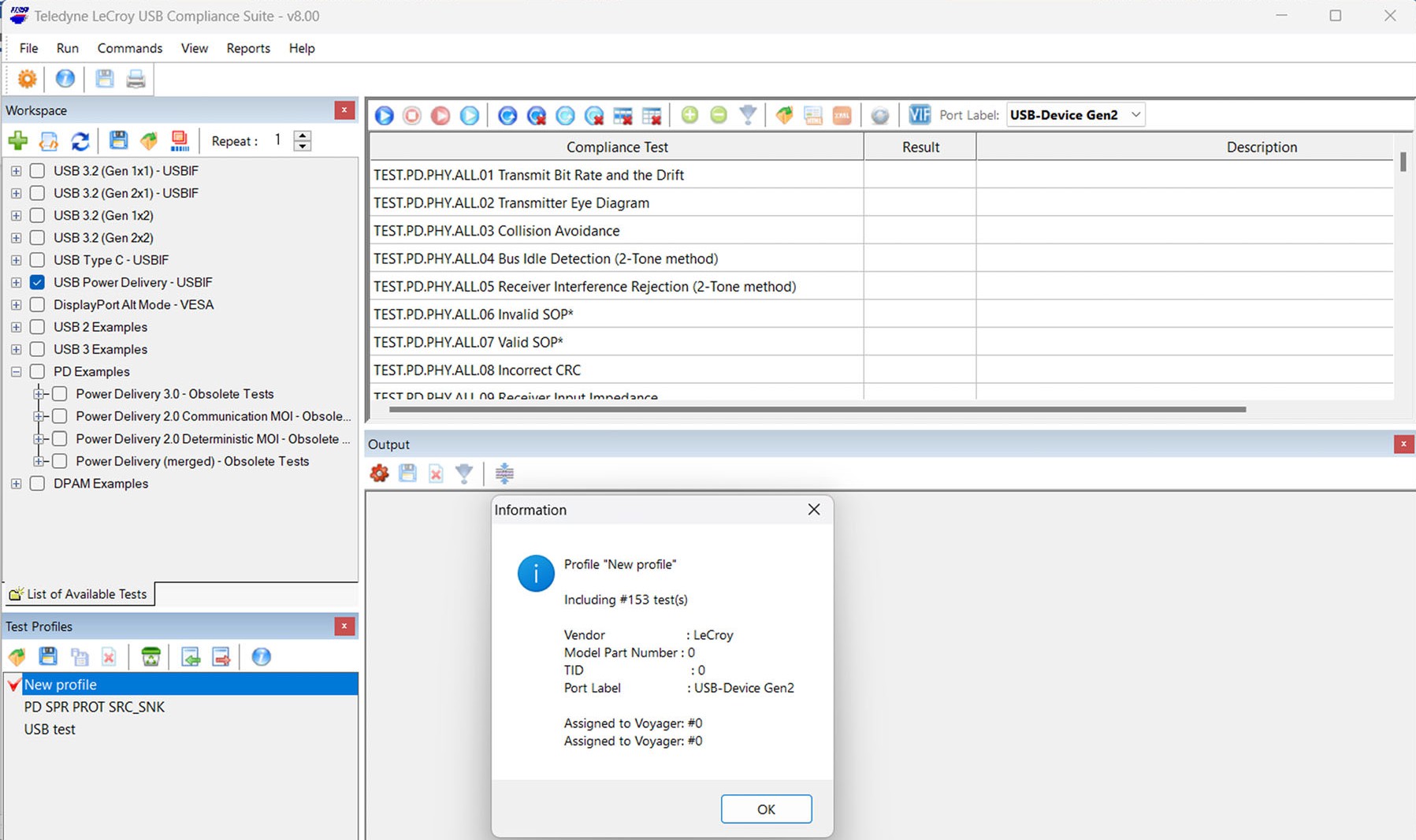
To open a Test Profile, you can double-click the profile name from the list OR select a profile from the list and click the Load Profile icon in the Test Profiles pane.
-
The selected Test Profile opens, along with the Workspace, tests, and Settings that are associated with the profile. A red check mark in the Test Profiles pane indicates which profile, if any, is open.